You can edit a CSV localization file online with POEditor: import the file, edit or translate its strings, and export it back as .csv. All you need is a free account, which takes a few seconds to create.
1) Add a new project in your Dashboard.
2) Add a language to the project, then import the strings from your CSV file, using the Import button in the project page. In the import options, choose Also import translations to a language and select the language you've just added.
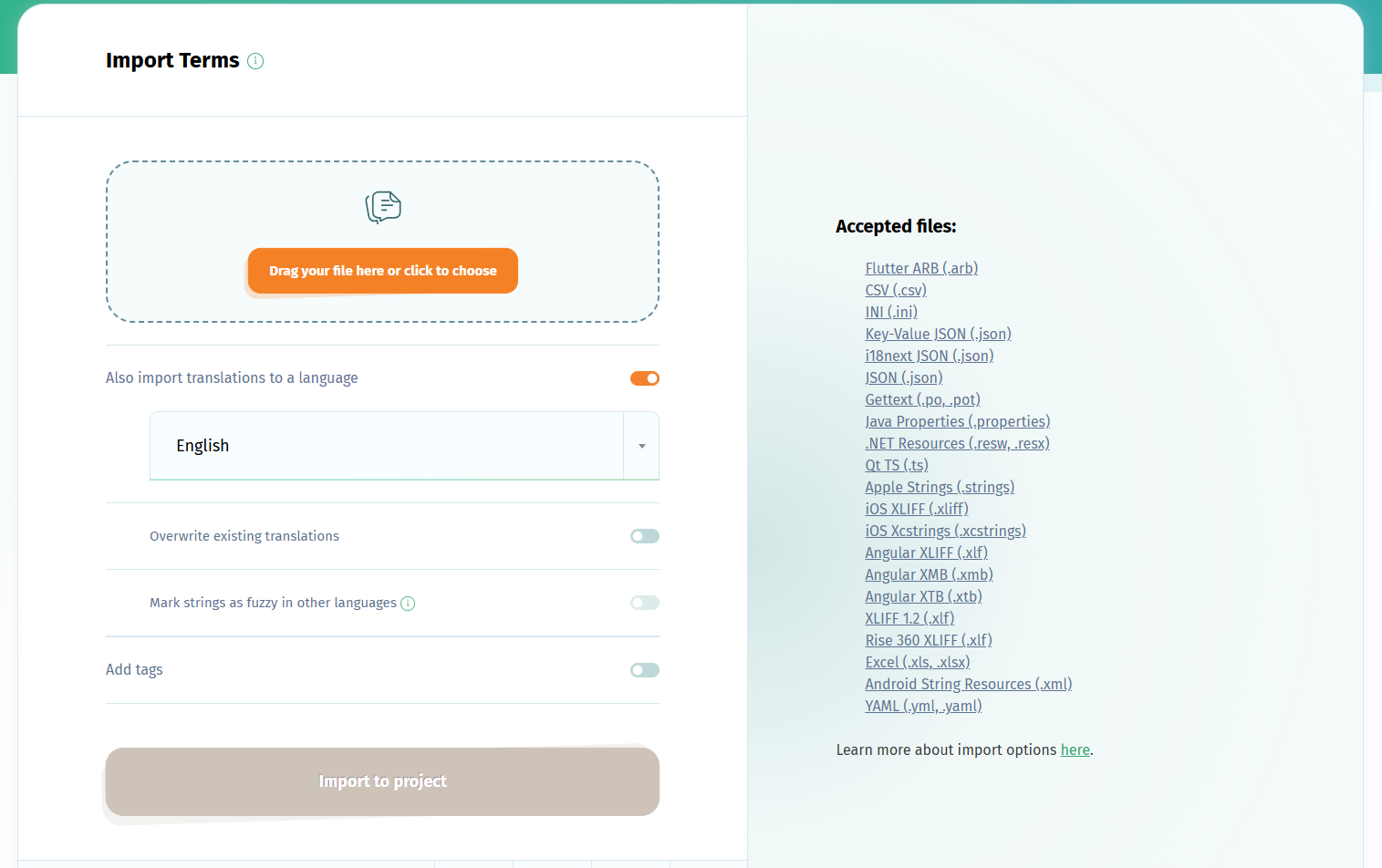
This language will automatically be suggested as your project's Default Reference Language after you import the translations. You can change the DRL in project's Settings.
3) Edit your strings in the translation page, or add more languages and translate them with AI, machine translation or your own contributors. See all translation options.
4) When you're done, click Export in any translation page to download the language as a CSV file.
What you can do in the editor
- Search and filter strings, for example to show only untranslated or fuzzy ones.
- Add comments and screenshots so translators understand the context.
- Tag strings to group them by feature or release.
- Catch errors with QA checks and QE feature.
- Mark translations as fuzzy when they need review, and proofread them before export.
The Premium Free Trial is automatically enabled on your account when you add your first project. It comes with 30 000 strings and lasts 10 days, by default. Once it ends, your account is automatically downgraded back to the Free plan, with 1 000 strings.