Find out how to connect Claude to POEditor and use AI-powered translation, adjustment and Quality Evaluation in your localization projects.
AI translation and evaluation features are available on any POEditor subscription plan, including the Free plan.
Configuring the Claude integration for localization
To connect Claude to POEditor, open Integrations and select Claude.
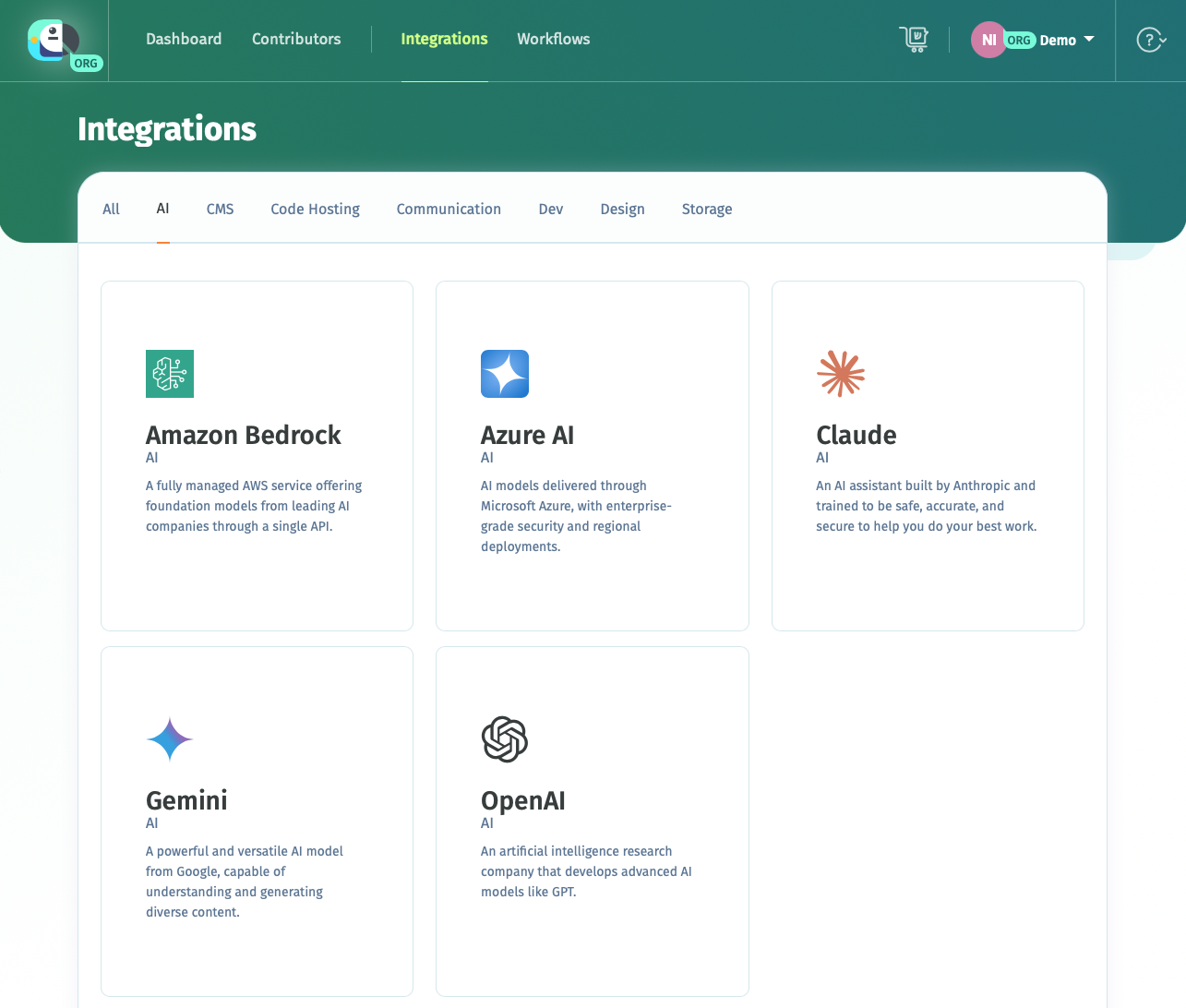
Enter your Claude API key, confirm that you understand AI features are experimental, choose the model you want to use and save your settings.

If Claude is your preferred AI provider, you can also set it as the default. It will then be used automatically for AI translation, AI adjustment and Quality Evaluation, unless you choose a different provider.
Integrations are configured at account level. Project admins and contributors can connect their own Claude integration or use one shared by the project owner, as described below.
How contributors can use your Claude integration
You can make your Claude integration available to contributors working on your localization projects.
To do this, enable the option Contributors Can Use Your AI Integration in your Account Settings. Contributors can then use your Claude integration without needing to add an AI API key.
Using Claude for AI translation
Once your Claude integration is connected, you can use AI translation directly from any language page in your project.
To translate individual strings, open an empty translation field and choose Translate with AI.

If you need to translate multiple strings at once, use the AI menu at the top of the Language page.
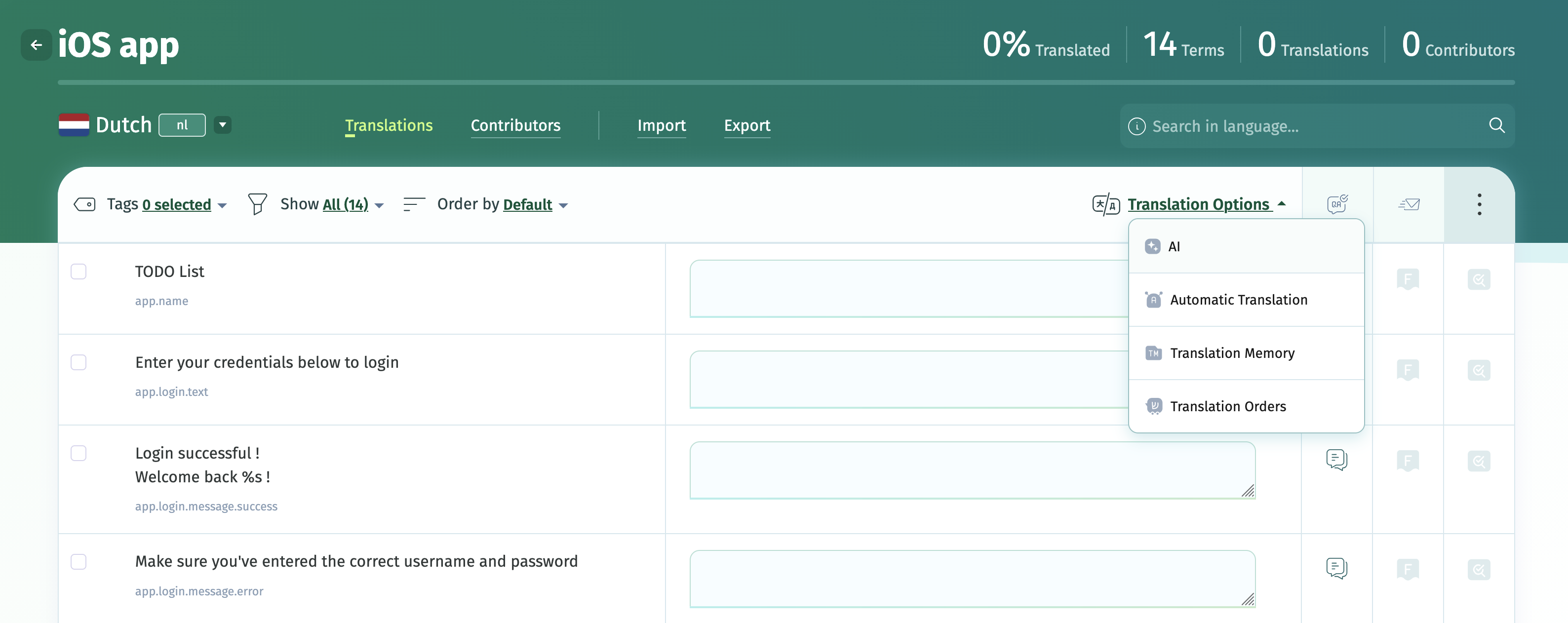
Select the source language and one or more target languages. You can also use Advanced Settings to apply filters, such as translating only strings with specific tags. Only untranslated strings from the selected languages will be processed.
AI post-editing using Claude (adjustment prompts)
Claude can be used to modify existing translations, whether they were created with AI, imported, or entered manually.
After generating an AI translation, you can ask Claude to create an alternative version that matches your requirements. Available adjustment prompts include Formal, Simplify, Shorter and Rephrase. You can also create your own adjustment prompts.
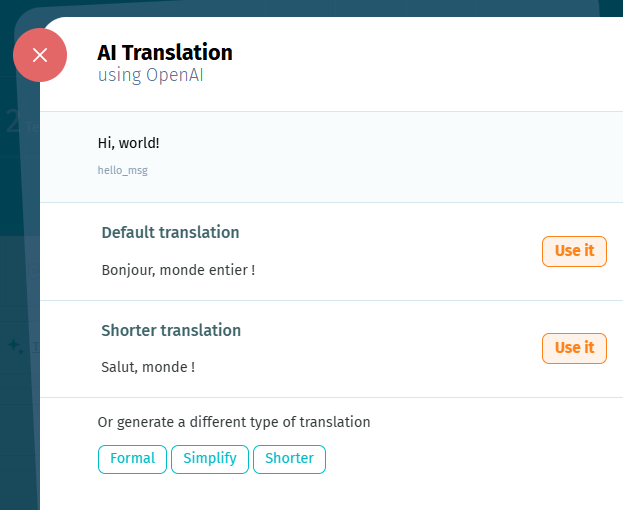
You can also edit existing strings using the option Edit with AI.

When addressing issues found by Quality Evaluation, use the QE Fix adjustment prompt to generate improvements for existing translations.
Using Claude for AI Quality Evaluation
Claude can also be used for AI-powered Quality Evaluation through your integration.
Each translation receives a score from 0 to 100 based on the MQM (Multidimensional Quality Metrics) framework. Any detected issues are categorized by type and severity.
Before running Quality Evaluation, make sure your project has a Default Reference Language set, or select another project language to use as the reference.
If you have a glossary assigned to your project, relevant glossary terms and definitions are automatically taken into account during the evaluation.
To evaluate translations, open a language page and select one of the available scopes:
- Unscored translations only - evaluates only translations that do not have a Quality Evaluation score yet.
- All translations - runs the evaluation again for all translations, including previously scored ones.
Evaluation scores are displayed next to each translation when hovering over them.

Click a score to view the detected issues and their details.
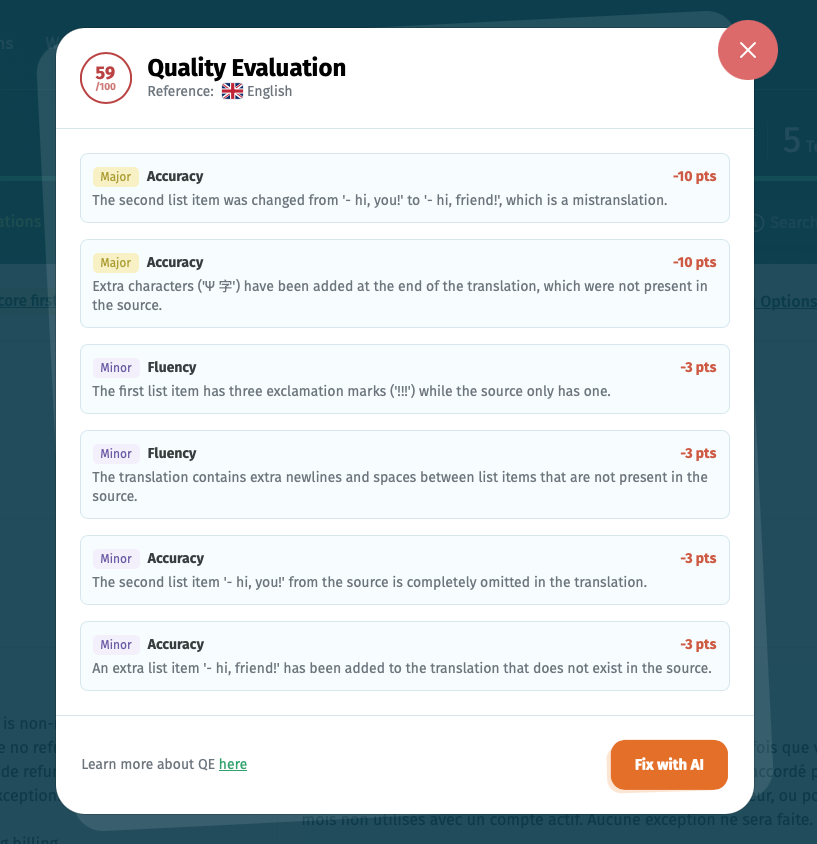
After reviewing the issues, you can fix them with AI using the dedicated feature.
Customizing AI prompts
The default AI prompts are designed to provide a balance between performance and cost efficiency, but you can customize them to match your localization workflow.
In your Claude integration settings, select Add custom prompt to modify the default translation prompts (Translate, Translate Plural and Translate Bulk), customize the built-in adjustment prompts (Formal, Simplify, Shorter, Rephrase and QE Fix), or create your own adjustment prompts.

Translation prompts are used for AI translation, while adjustment prompts help modify existing translations, including QE Fix, which is used to address issues identified by Quality Evaluation.
When customizing prompts, make sure to use the required placeholders displayed under Tips for adjustment prompts.
Custom models
You can use a custom AI model trained with your own data in POEditor instead of the default models.
Once Claude is connected, you can select your custom model from the model selector.
Workflows: adding an AI translation step
You can include a Translate with AI step in your Workflows to automate translations using Claude as your AI provider.
Some workflow templates already include an AI translation step, or you can add one when creating your own Custom workflow.
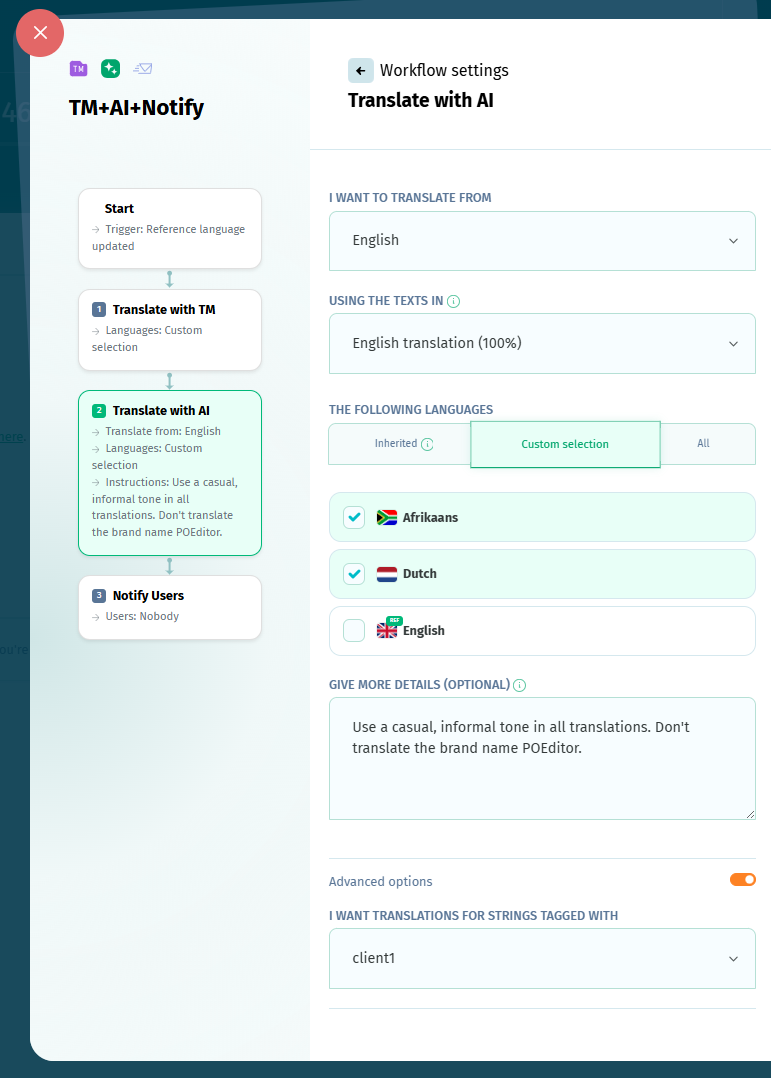
Choose the source language and the target languages for the translation step. The source can be taken from Project Terms or from an existing project language. If a Default Reference Language is set, it will be selected automatically.
You can use languages from the previous workflow step, select specific languages manually, or translate all project languages. Advanced options allow you to filter the strings sent for translation by tag.
How to include glossaries in AI prompts
If a glossary is assigned to your project, relevant glossary terms are automatically included in both translation and adjustment prompts for the integrated LLM. This applies to glossary terms that have a definition in the target language or are marked as untranslatable.
No additional setup is required — the terms are automatically taken into account whenever you use AI translation or adjustment prompts such as Rephrase, Formal, Simplify, Shorter, and others.
Using the official POEditor MCP server
If you work with an MCP-compatible AI assistant, you can connect it to POEditor through the official POEditor MCP server.
You can use your AI assistant to handle tasks such as managing projects, updating translations, running QA checks and exporting data, without manually working with APIs or switching between tools.