Available to project owners and administrators, Search and replace lets you update text across translations in your projects in one go. You set up what to look for and what to replace it with, then approve the changes before anything is saved.
To open it, click the Search and replace icon next to the search bar on your Dashboard or on any project page.
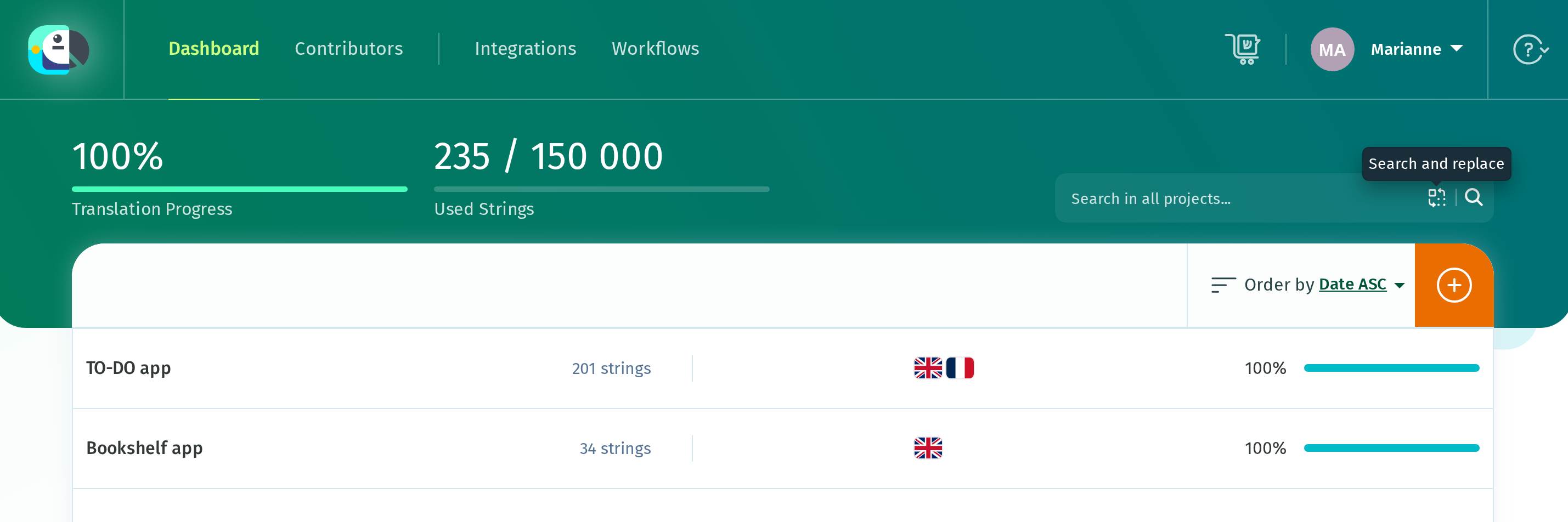
How to set up the replacement
Type the text you want to find in Search for, and what should take its place in Replace with.
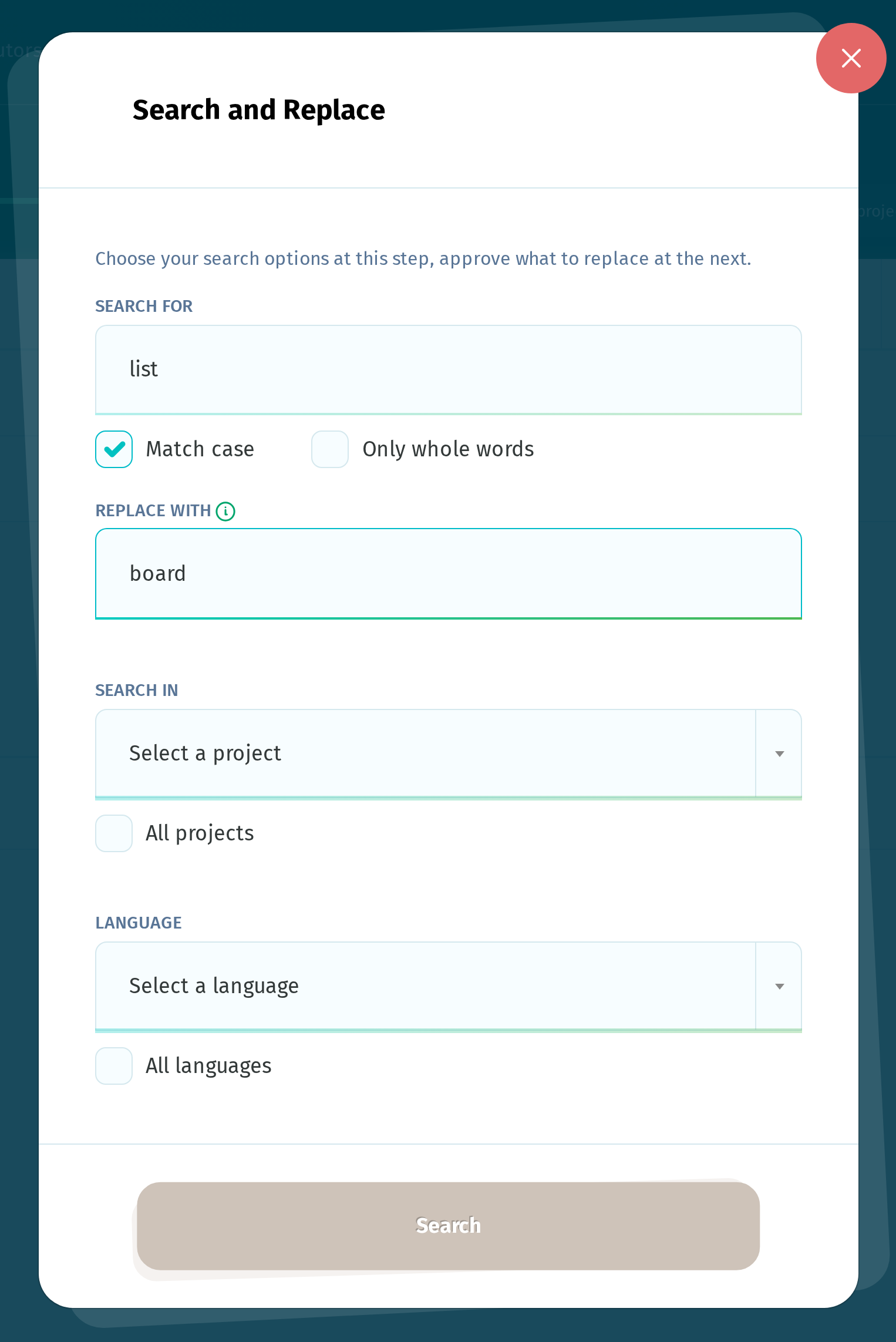
The search uses plain text, not patterns, so characters like $1, * and backslashes are matched literally.
You’ll find two options below the field:
- Match case is enabled by default. Disable it to ignore capitalization when searching.
- Only whole words is disabled by default. When enabled, it matches complete words only. Accented letters are treated as part of a word.
Under Search in and Language, select the projects and languages you want to search, or select all of them using All projects and All languages. All projects includes every project you own or are assigned to as an administrator. All languages includes every language available in the selected projects.
How to approve the changes
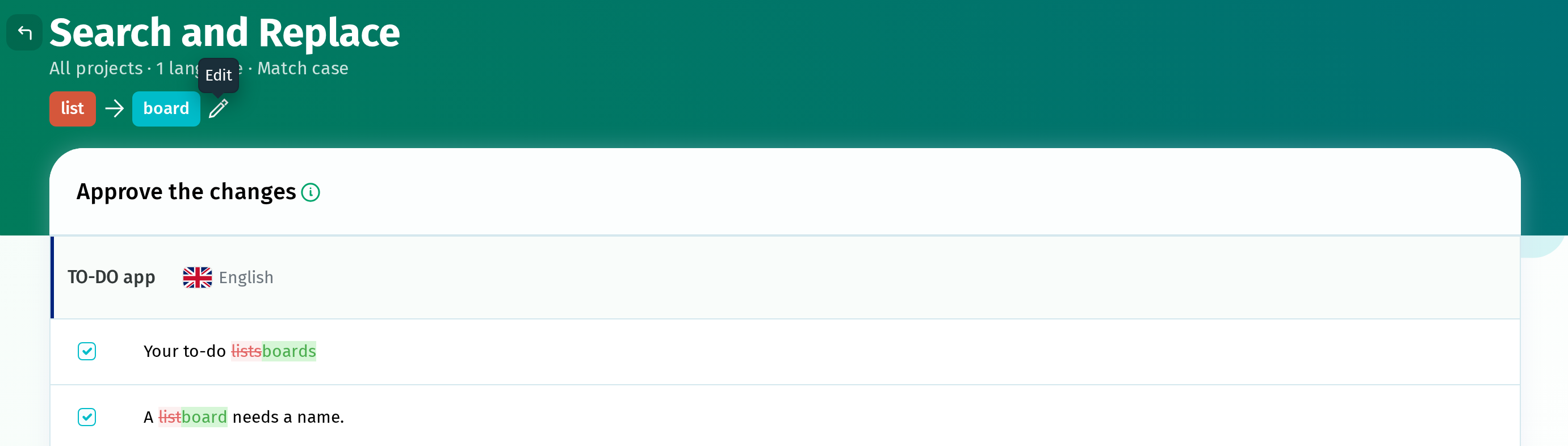
The next page lists all translations that will be changed, showing the current and replacement text.
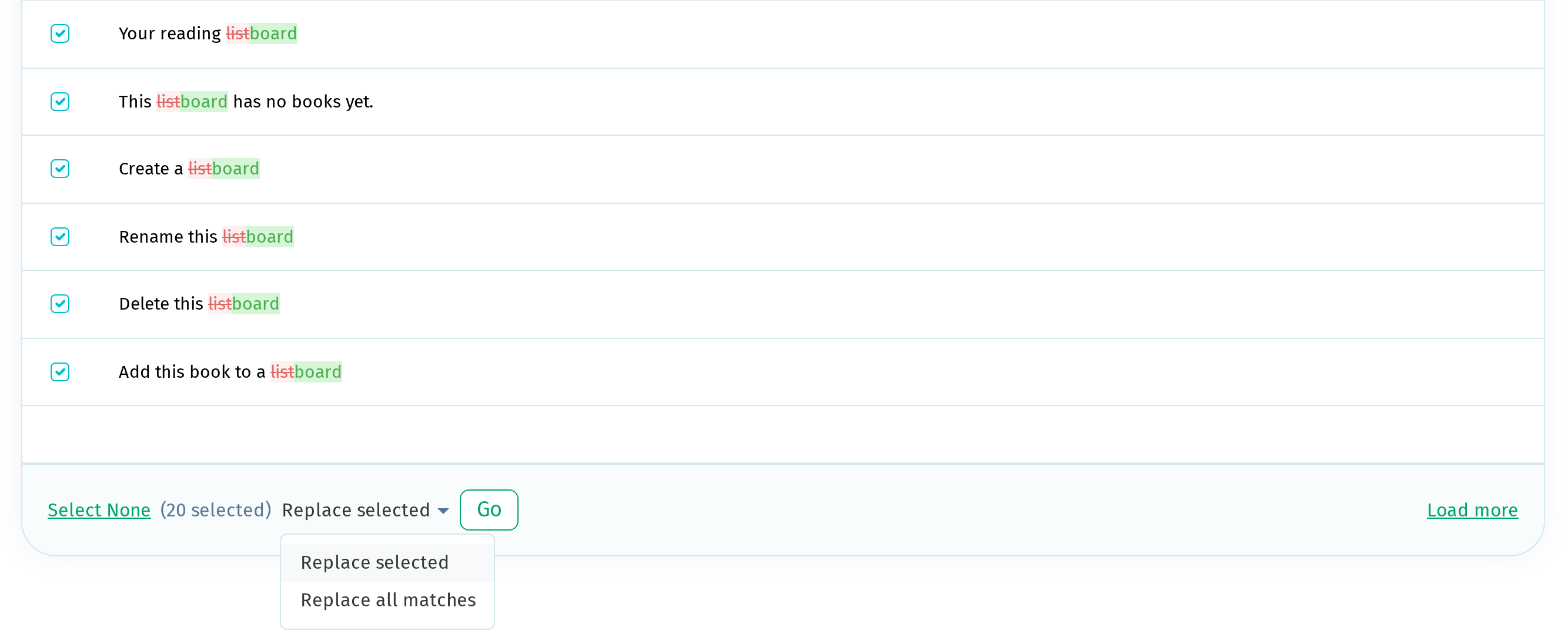
All the loaded rows are selected by default. Deselect any rows you want to leave unchanged. Select All Page and Select None apply to the rows currently loaded. Click Load more to load the next batch.
Plural forms are matched separately, and each row shows the corresponding form name. A match in one form does not affect the other forms.
You can then choose which results to update:
- Replace selected changes only the selected rows.
- Replace all matches changes every match in the selected scope, including matches that have not been loaded yet.
Press Go to confirm the changes.
After the replacement, POEditor reports how many translations were updated, how many of those were emptied and removed, and how many couldn’t be updated.
Deleting text instead of replacing it
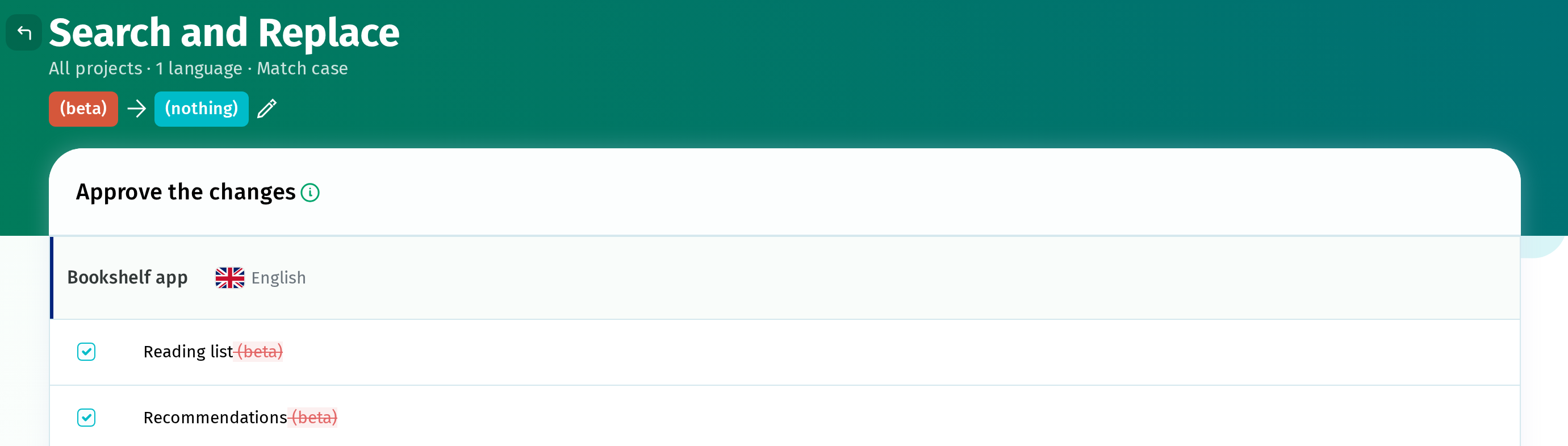
To delete text from your translations, leave Replace with empty. This removes every match from the translations where it appears.
Changing a search without starting over
The page header shows the text you want to replace, the replacement text, and the selected scope. Click Edit to reopen the setup window and change your search, replacement, or selected languages without returning to the Dashboard.
If there are no matches, click search options to reopen the setup window.
What is left alone
- Terms. Only translations are searched and rewritten. Source texts are managed on the Terms page.
- Terms marked as non-translatable, following the same rules as imports.
Search and replace and imports
Search and replace and imports cannot run at the same time because both can update translations. If an import is already running, POEditor asks you to try again when it finishes. Imports cannot start while a replacement is running.