Connect Amazon Bedrock to POEditor and put its models to work in your localization projects — translating strings, refining existing translations, and evaluating translation quality.
AI translation and evaluation features are included with every POEditor plan, including Free.
Connecting Amazon Bedrock
Head to Integrations and select Amazon Bedrock.

Enter your API key and Endpoint. Your Amazon Bedrock endpoint includes the region as part of the host — the recommended option is the OpenAI-compatible endpoint https://bedrock-mantle.{region}.api.aws/ (e.g. https://bedrock-mantle.us-east-1.api.aws/) but https://bedrock-runtime.{region}.amazonaws.com/ also works.
Confirm you understand this is an experimental module — POEditor can't guarantee output quality, and usage is billed to your AWS account — then hit Connect.
With the connection in place, pick the model you'd like to use and save.
Amazon Bedrock can also be set as your account's default AI provider, applied automatically across AI translation, AI adjustment, and Quality Evaluation unless you pick a different provider for a specific run.
AI integrations live at the account level. Admins and contributors on a project can each connect their own key, or use one shared by the project owner — covered in the next section.
Letting contributors use your Bedrock connection
Rather than have every contributor set up their own AWS credentials, you can share access to yours.
Head to Account Settings and turn on Contributors Can Use Your AI Integration. From then on, anyone contributing to your projects can run AI translation and evaluation through your Bedrock connection without needing an API key of their own.
Translating with Amazon Bedrock
With the integration connected, AI translation becomes available on every language page.
To translate one string at a time, click into an empty translation field and choose Translate with AI.

For bulk translation, use the AI menu at the top of the Language page instead.
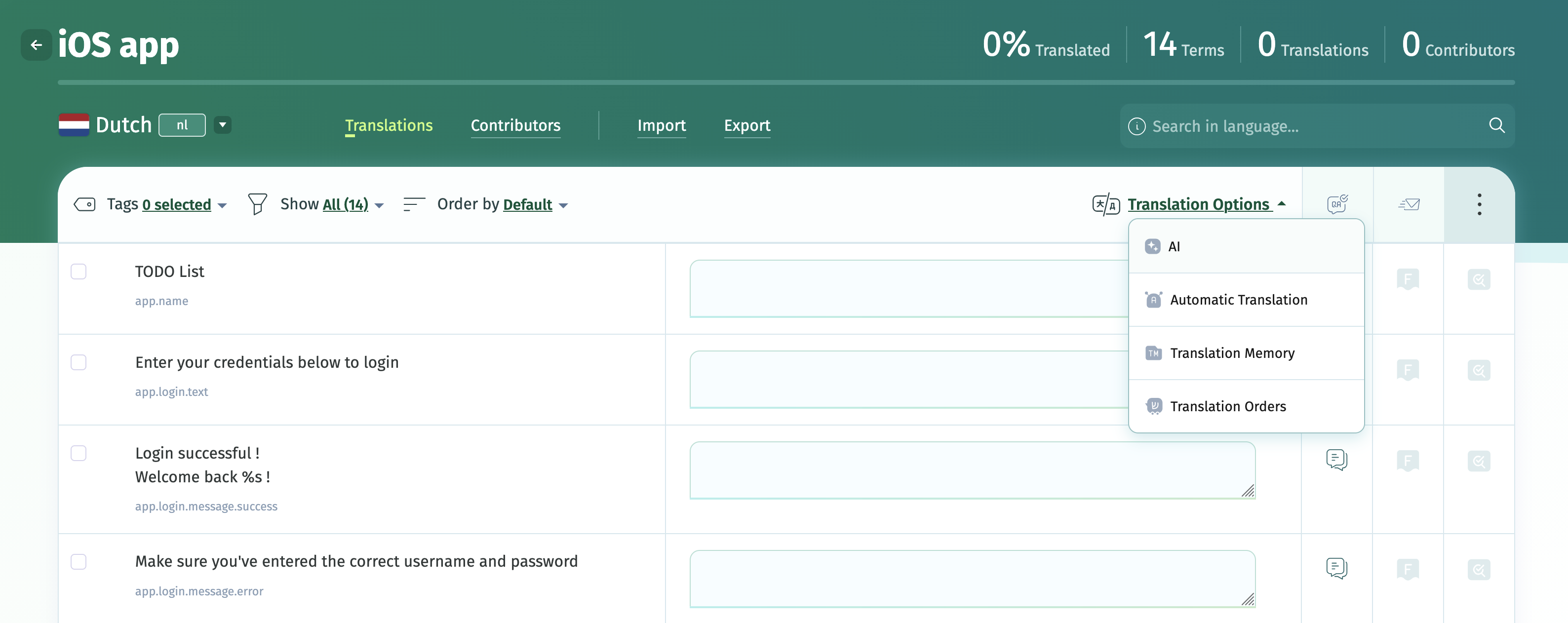
Pick a source and one or more target languages. Advanced Settings lets you narrow the batch down to strings carrying specific tags — only untranslated strings in your selection are affected.
Refining translations with Bedrock (adjustment prompts)
Translations don't have to be edited by hand to be improved. Select Edit with AI on any translation field to rewrite an existing translation with one of the built-in adjustment prompts:
- Formal – gives the translation a more formal register
- Simplify – simplifies the phrasing
- Shorter – trims the translation down
- Rephrase – rewords it while keeping the meaning

Adjustment prompts work on any existing translation, regardless of how it got there — AI-generated, imported, or typed manually. Need something the defaults don't cover? You can define your own adjustment prompt; see the prompt customization section below.
Evaluating translation quality with Bedrock
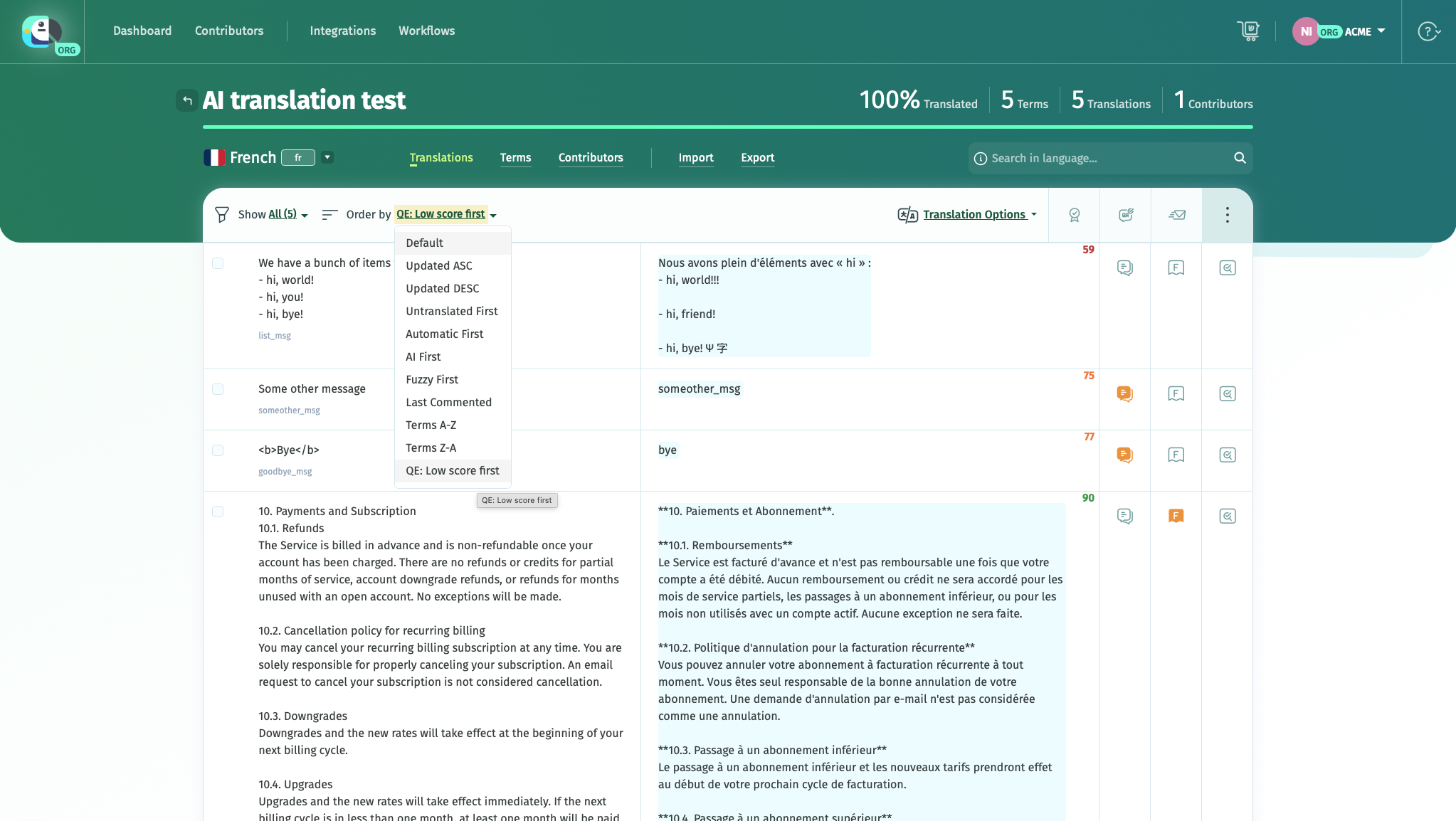
Quality Evaluation scores your translations against the MQM (Multidimensional Quality Metrics) framework, breaking down issues by type and severity so you know exactly where a translation falls short.
Quality Evaluation is included on every plan.
Requirements
- The Amazon Bedrock integration connected on your account (yours or shared with you)
- A Default Reference Language configured for the project, or a language you can select as the reference point for comparison
When a project has a glossary attached, its terms and definitions are automatically passed to Bedrock as part of the evaluation.
Understanding the score
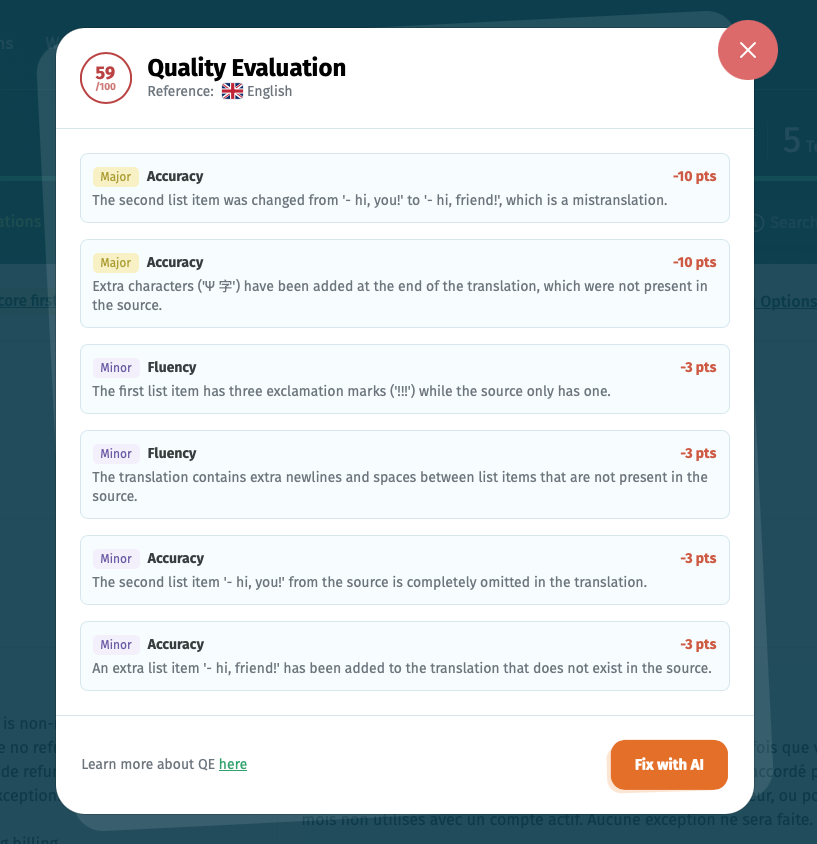
Every evaluated translation gets a score out of 100. Where issues exist, each one is broken out with:
- Category – the type of problem (e.g. Accuracy)
- Severity – Major or Minor
- Point deduction – how much that issue cost the score
Scores come from the model itself, so re-running the evaluation on an unchanged translation can produce a slightly different result each time. Click a score to open the full breakdown of flagged issues.
Letting AI fix what it flags
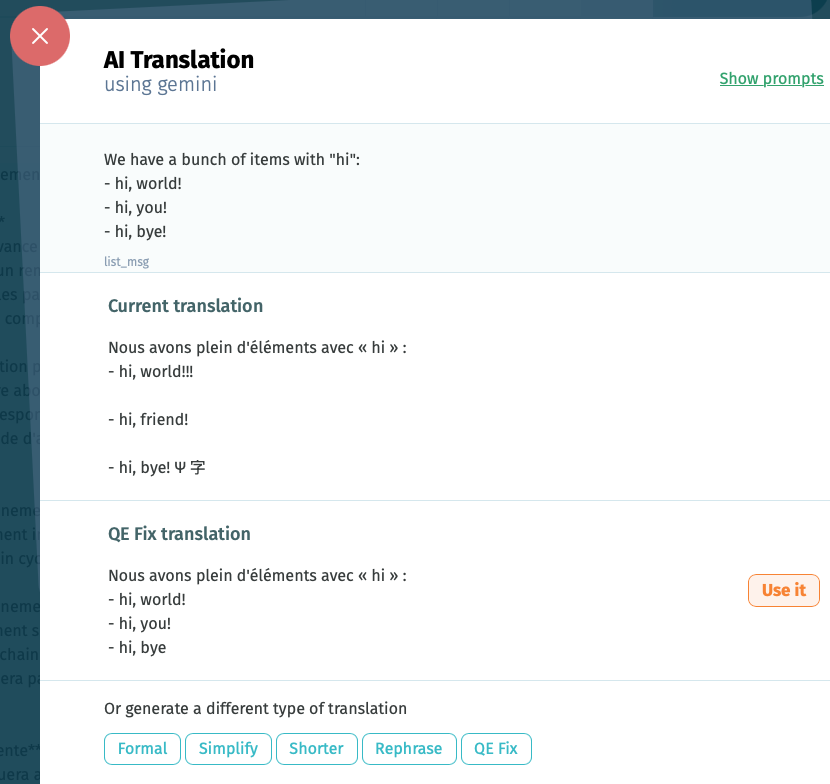
The breakdown view lists every flagged issue next to its category and severity. Select Fix with AI and Bedrock will generate a corrected version targeting those specific problems.
This opens the AI Translation panel with the original and the AI-corrected version side by side. If the fix looks right, Use it to apply it.
Prefer a different kind of edit? The same panel also surfaces Formal, Simplify, Shorter, Rephrase, and QE Fix — QE Fix being the issue-driven correction described above.
Prioritizing by score
To work through the weakest translations first, switch the Order by control above the translation list to QE: Low score first. The list re-sorts with the lowest-scoring translations at the top.
Customizing AI prompts
POEditor's default prompts for Bedrock are tuned to balance output quality against token cost, but nothing stops you from adjusting them.
Open Add custom prompt to rewrite any of the built-in translation prompts (Translate, Translate Plural, Translate Bulk) or adjustment prompts (Formal, Simplify, Shorter, Rephrase, QE Fix), or to define entirely new adjustment prompts.

Each prompt has a job and requires specific placeholders:
Translation prompts:
- Translate – fires when translating one string at a time on a language page. Requires
{source_language},{source_translation},{target_language}. - Translate Plural – the plural-form equivalent, used one string at a time. Requires
{source_language},{source_translation},{target_language},form. - Translate Bulk – handles multi-string translation, both from the language page and from workflows. Adjustment prompts:
- Formal, Simplify, Shorter, Rephrase, and any custom adjustment prompt must include the
{target_translation}placeholder. Worth noting: - If plural forms are enabled on your project, customize both Translate and Translate Plural — the first covers non-plural strings, the second covers plurals.
- Every prompt besides Translate and Translate Plural operates on translations that already exist.
Using a fine-tuned model
Want translations or adjustments run through a model you've fine-tuned yourself? You'll need:
- A POEditor subscription with the Amazon Bedrock integration enabled
- A fine-tuned model available through your Bedrock account
- That provider connected to your POEditor account or organization, following the setup steps above Once connected, your fine-tuned model shows up as a selectable option wherever you choose a default AI provider.
Adding an AI translation step to a workflow
You can add AI translation as a step in a no-code workflow as part of a larger automated pipeline. A few of the built-in templates already pair it with other steps:
- Git import + TM + AI + Git export – pulls strings in from Git, fills what it can from Translation Memory, hands the rest to AI translation, then pushes the results back out to Git.
- TM + AI + Notify – fills from Translation Memory, translates the remainder with AI, then pings your chosen reviewers. To use this in a project, go to Workflows > Add workflow and pick a template built around a Translate with AI step — or assemble a custom workflow combining that step with others (Git import/export, Translation Memory, Automatic Translation, Quality Assurance, Notify Users, and more).
An AI translation step needs the Amazon Bedrock integration connected before it can run. Project admins can only add these workflow steps once the project owner has set up the integration.
How to include glossaries in AI prompts
If a glossary (/kb/glossaries) is assigned to your project, relevant glossary terms are automatically included in both translation and adjustment prompts for the integrated LLM. This applies to glossary terms that have a definition in the target language or are marked as untranslatable.
No additional setup is required — the terms are automatically taken into account whenever you use AI translation or adjustment prompts such as Rephrase, Formal, Simplify, Shorter, and others.
Connecting through the official POEditor MCP server
POEditor's official MCP (Model Context Protocol) server gives AI agents and tools — including ones built on Amazon Bedrock models — direct access to your localization projects, so tasks like pulling project data or managing translations can happen from inside your AI assistant instead of through custom API scripts.