Find out how to connect Azure AI with POEditor to use AI models in your localization projects to translate, adjust and evaluate translations.
AI translation and evaluation features are available on any POEditor subscription plan, including the Free plan.
Setting up the Azure AI integration for localization
Get started by going to Integrations and choosing Azure AI.

Enter the API key and Endpoint for your Azure AI resource. Your Azure resource endpoint works with both classic Azure OpenAI (https://your-resource.openai.azure.com/) and Azure AI Foundry (https://your-resource.services.ai.azure.com/).
Check the box to confirm you understand this is an experimental module, for which POEditor cannot make any quality guarantees, and that usage will be charged to your Azure AI account. Then select Connect.
Unlike other AI integrations, you cannot chose what LLM model to use in POEditor, you will need to do that in your Azure instance.
You can also make Azure AI your default AI provider. This default provider will be used whenever you run AI translation, AI adjustment, or Quality Evaluation, unless another provider is selected.
Integrations are set up at account level. If you're an admin or contributor in a POEditor localization project, you can set up your own AI integration or ask the project owner to share their integration with you as described in the next section.
Sharing your Azure AI integration with contributors
You can share your Azure AI integration with contributors assigned to your localization projects.
In your Account Settings, enable the Contributors Can Use Your AI Integration option. Contributors will then be able to use your Azure AI integration without setting up their own API key.
Translating strings with Azure AI
Once you've connected and configured the Azure AI integration, you can translate strings in any language in a localization project.
For individual strings, click an empty translation field and select Translate with AI.

To translate multiple strings at once, use the AI menu at the top of the Language page.
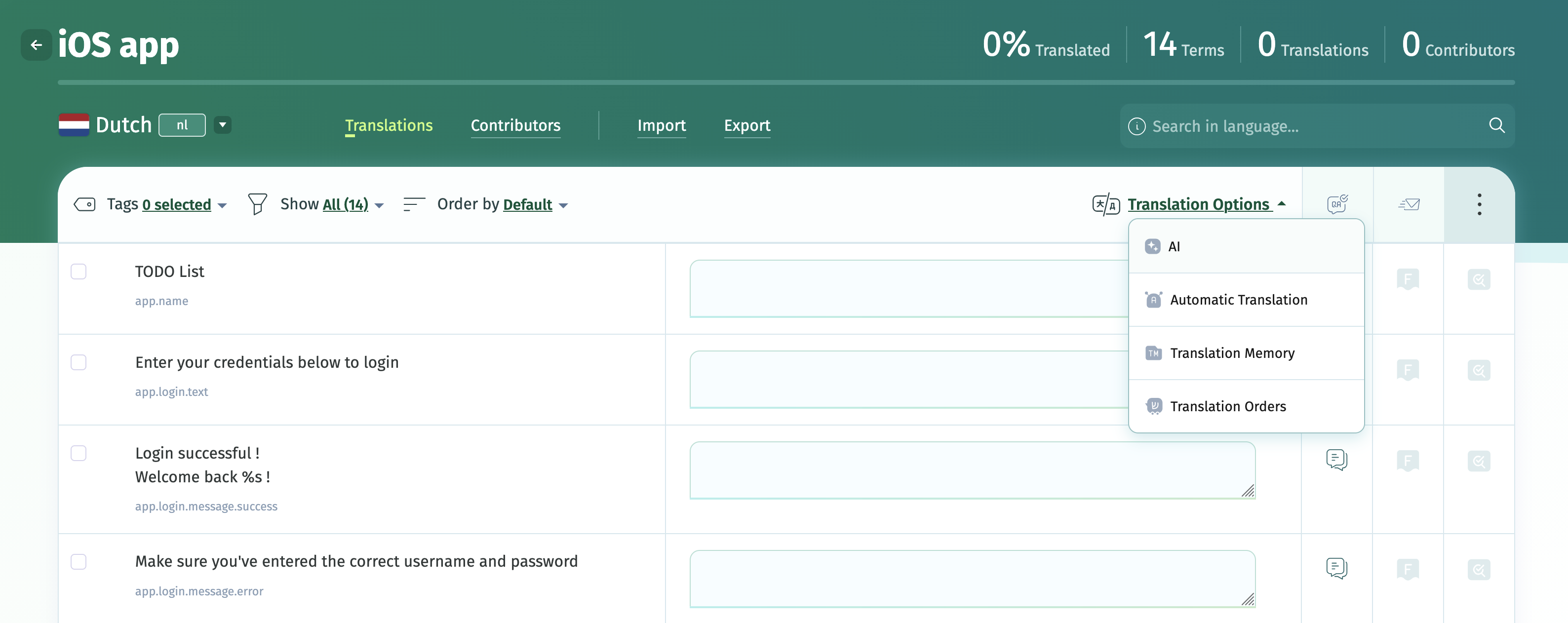
Choose the source language and the target language(s). In Advanced Settings, you can limit AI translation to strings with specific tags. Only strings without translations from your selection will be translated.
AI post-editing with Azure AI (adjustment prompts)
Once a source string has a translation, you can ask Azure AI to rewrite it instead of editing it manually. From the translation field, select Edit with AI to see the available adjustment options:
- Formal – makes the existing translation more formal
- Simplify – makes the existing translation simpler
- Shorter – shortens the existing translation
- Rephrase – rephrases the existing translation

These adjustment prompts work on translations that already exist, whether they were produced by AI, imported, or entered manually. If the built-in options don't cover your use case, you can add your own adjustment prompt — see the customization section below.
AI quality evaluation with Azure AI
Quality Evaluation uses AI to score your translations for quality, based on the MQM (Multidimensional Quality Metrics) framework. It flags issues by type and severity, so you can see at a glance which translations need review and why.
Quality Evaluation is available on all plans.
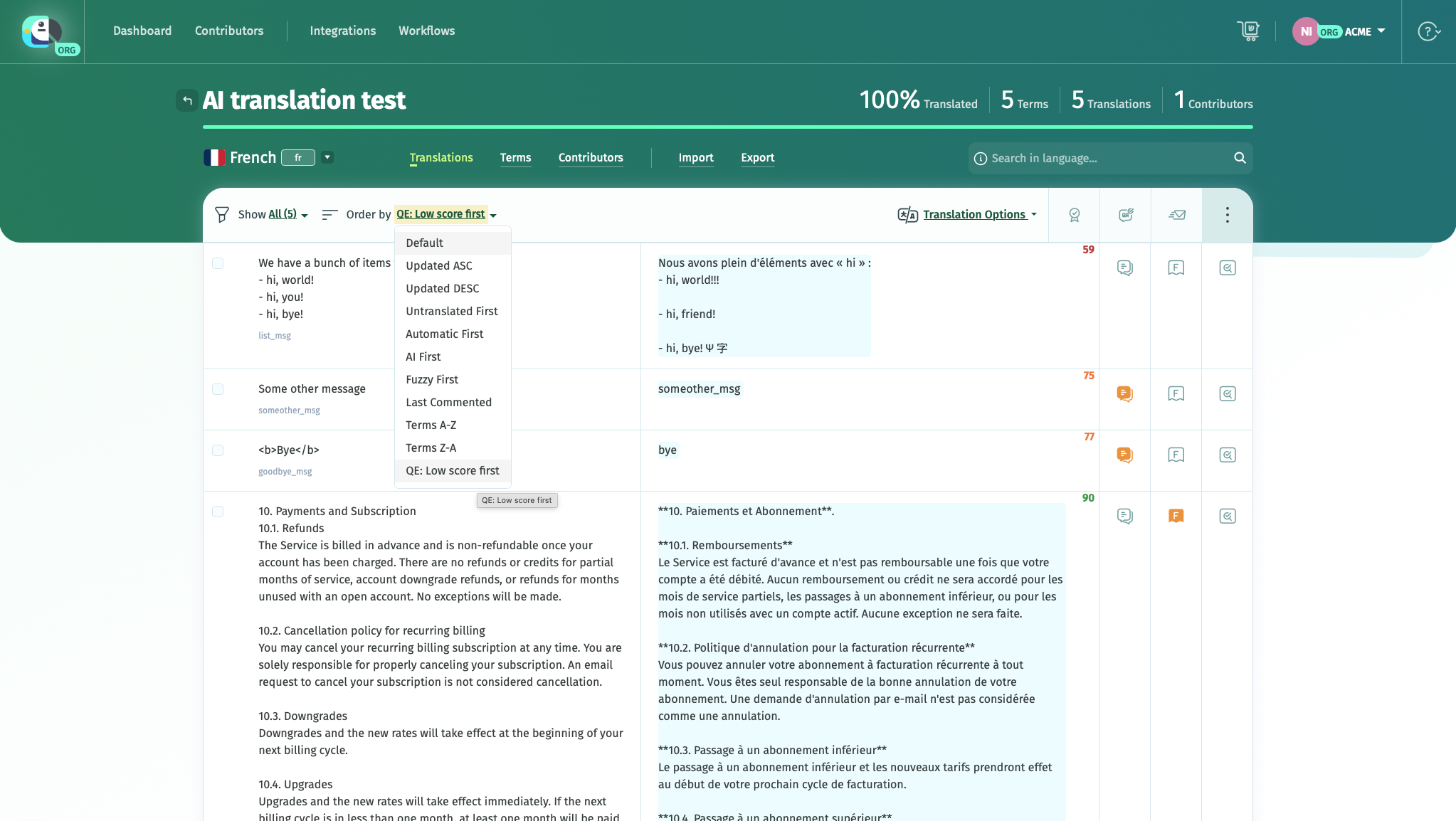
For AI Quality Evaluation, you'll need:
- The Azure AI integration set up on your account (or shared with you, if you're working in a shared project)
- A Default Reference Language set for the project, or access to a language to choose as reference — this is the language each translation is checked against
If you have a glossary set on your project, the relevant glossary terms and definitions are automatically sent to Azure AI to be included in the evaluation.
How scoring works
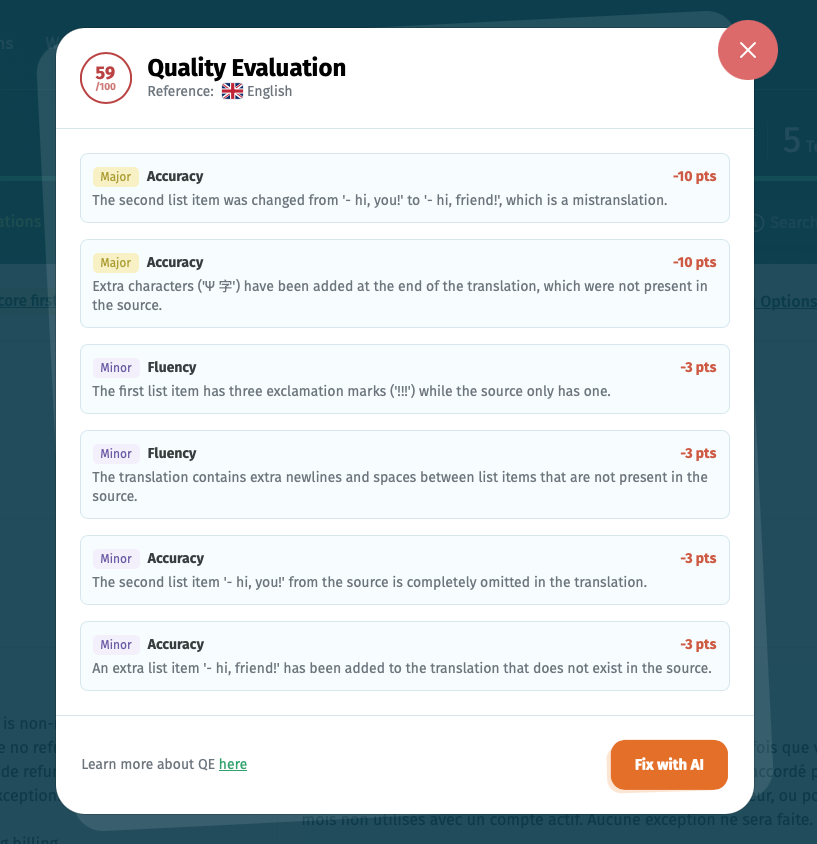
Each evaluated translation gets an overall score out of 100. If issues are found, they're listed individually with:
- Category – the type of issue (for example, Accuracy)
- Severity – Major or Minor
- Point deduction – how much the issue lowered the score
Because scoring is AI-generated, running Quality Evaluation again on the same translation may produce slightly different results. To see the flagged issues, click on a QE score.
Fixing flagged issues with AI
Opening a translation's Quality Evaluation results shows its score alongside the list of flagged issues. From there, click Fix with AI to have Azure AI generate a corrected version that addresses those specific issues.
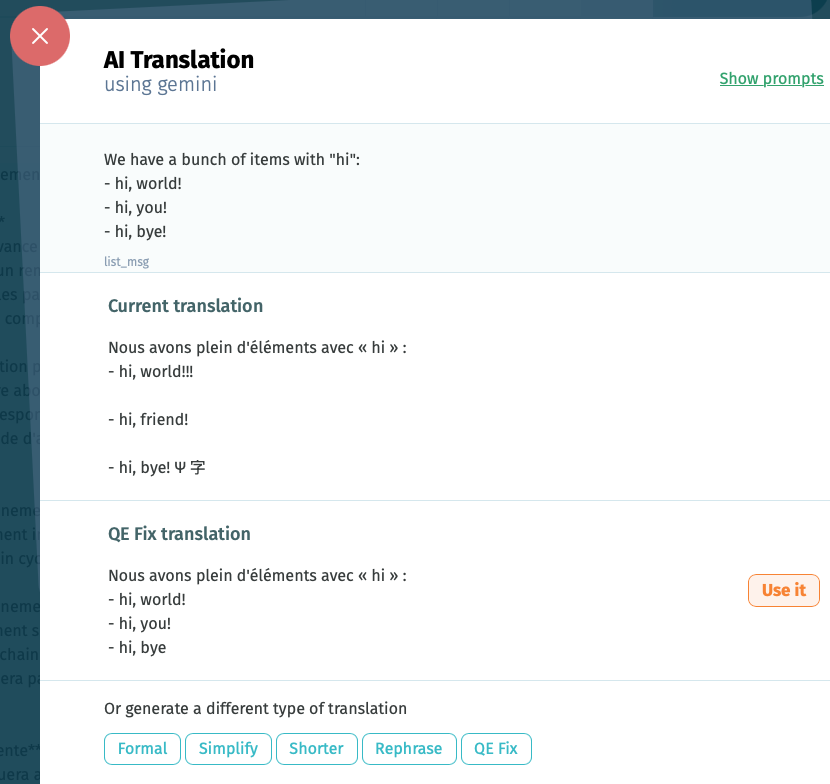
This opens the AI Translation panel, showing the current translation next to the AI-generated fix. Review the suggested fix and click Use it to apply it to the translation.
If you'd rather generate a different variant instead, the panel also offers Formal, Simplify, Shorter, Rephrase, and QE Fix options — QE Fix is the same issue-driven correction available from the Quality Evaluation results.
Sorting by QE score
To review the lowest-scoring translations first, use the Order by dropdown above the translation list and select QE: Low score first. This sorts the list so translations with the lowest scores appear at the top, letting you prioritize the ones that need the most attention.
How to customize AI prompts
The default prompts for the Azure AI integration are optimized for performance while maintaining cost efficiency, but you're encouraged to customize them to fit your needs.
Use the Add custom prompt option to edit the default translation prompts (Translate, Translate Plural, Translate Bulk) and adjustment prompts (Formal, Simplify, Shorter, Rephrase, QE Fix), or to add new adjustment prompts of your own.

Custom models
If you'd like to translate or adjust the strings in your localization projects using a custom AI model that you trained with your data, you will need the following:
- A subscription with the Azure AI integration
- A custom-trained AI model with Azure AI
- To connect this provider with your POEditor account or organization following the steps described above and choose it in your Azure instance.
Workflows: how to add an AI translation step
You can add AI translation as a step in a no-code workflow to automate parts of your localization pipeline. Some workflow templates already combine AI translation with other steps, for example:
- Git import + TM + AI + Git export – imports strings from Git, pre-fills empty translations from Translation Memory, translates the remainder with your connected AI provider, then exports the results back to Git.
- TM + AI + Notify – pre-fills translations from Translation Memory, translates the rest with AI, then notifies your preferred users for review. To add this to a project, go to Workflows > Add workflow and choose a template that includes a Translate with AI step, or build a custom workflow using that step alongside others (Import/Export from Git, Translate with TM, Translate with AT, Quality Assurance, Notify Users, and more).
Workflow steps that use AI translation require the Azure AI integration to be set up first. Project admins can add these workflows only after the project owner has connected the integration.
How to include glossaries in AI prompts
If a glossary is assigned to your project, relevant glossary terms are automatically included in both translation and adjustment prompts for the integrated LLM. This applies to glossary terms that have a definition in the target language or are marked as untranslatable.
No additional setup is required — the terms are automatically taken into account whenever you use AI translation or adjustment prompts such as Rephrase, Formal, Simplify, Shorter, and others.
Using the official POEditor MCP server
POEditor's official MCP (Model Context Protocol) server lets you connect AI tools and agents directly to your localization projects — including ones using Azure AI as their underlying model — so you can manage translation projects, retrieve localization data, and run common tasks from within your AI assistant, without writing custom API scripts.