To speed up the production of glossaries for your localization projects, you can scan them for term suggestions (such as product names, technical terms, and abbreviations) with your integrated AI provider.
Each suggestion includes the term as it appears in the string, along with a short, editable description. Suggestions that should not be translated are automatically marked as untranslatable. You can then review the suggestions and choose which ones to add to your glossary.
AI Suggestions uses the AI provider integrated with your POEditor account. Any requests made during the scan are billed to your provider account.
Feature access
To use Glossaries, you need to have at least the Premium plan on your account or organization.
To create a glossary from scratch for a project, you need to be its owner (either with your personal account or as part of an organization, as it owner or manager).
The option Contributors can edit the glossary in its settings allows you to share editing access to the glossary with your contributors, who can in turn use the option AI suggestions in a glossary to get suggestions for the glossary after it was created and assigned to the project.
Creating a glossary with AI
When creating a new glossary, go to the Glossaries page in your Account or Organization Settings, click Add new glossary, and open the tab Generate with AI.
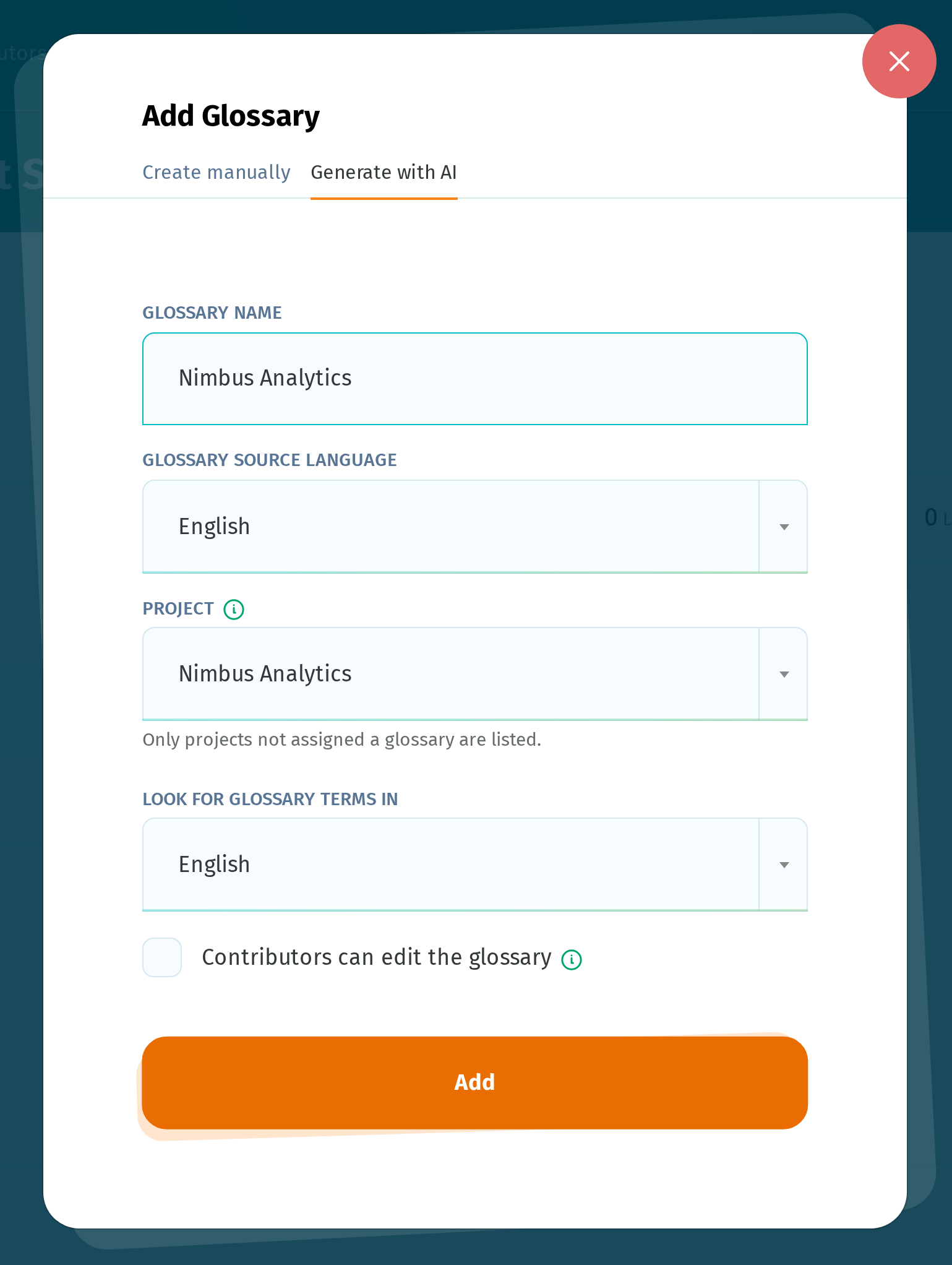
Select the project the glossary should be based on and choose what strings AI should scan under Look for glossary terms in.
Click Add to create the glossary and start the first scan.
Running AI Suggestions on an existing glossary
If you already have a glossary, open it and go to the tab AI Suggestions.
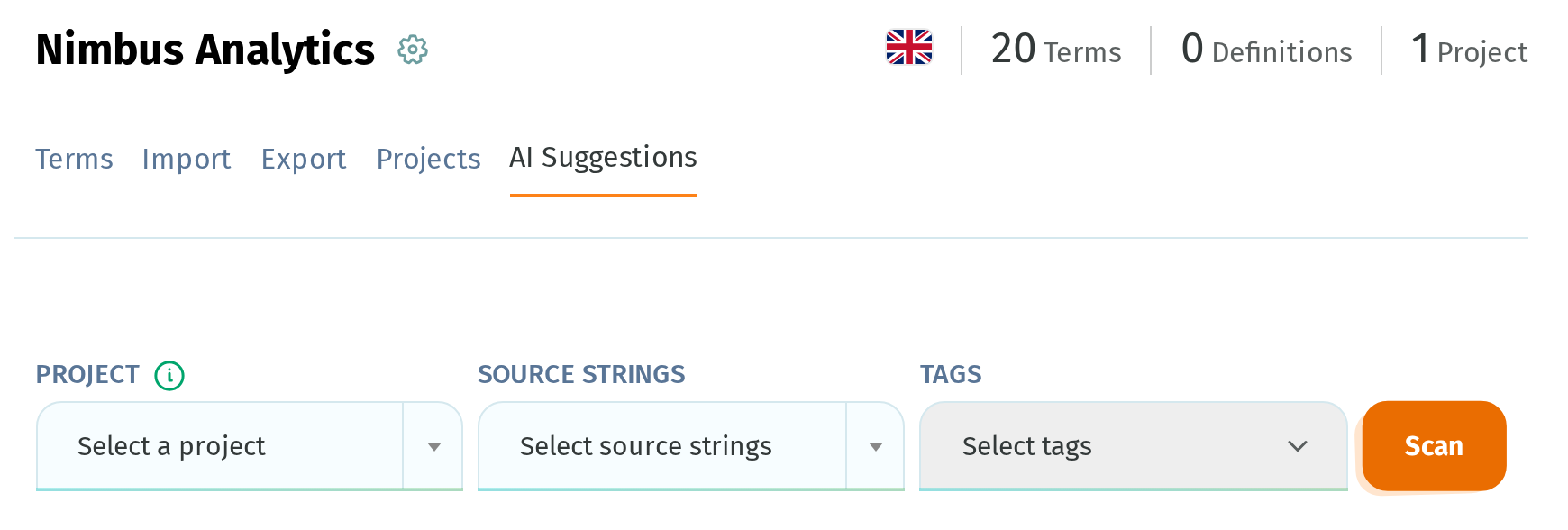
Select the following before running the scan:
- Project - Select one project to scan.
- Source strings - Choose Project Terms to scan the terms themselves, or a project language to scan its translations.
- Tags - Optional. Select one or more tags to scan only part of the project. Once you select a tag, Scan strings matching lets you choose between All, Any and Exclude. Exclude scans everything except the strings with those tags.
What AI Suggestions looks for
AI Suggestions looks for terms that may need to be kept consistent across translations, such as:
- Product, brand, and feature names
- Technical terms with a fixed or non-obvious meaning
- Abbreviations, acronyms, and codes
- Terms that are ambiguous to translate and may need a consistent translation
It skips common words, even when they appear frequently, as well as whole sentences, numbers, placeholders, and dates. For example, common UI terms such as Settings, Login, and Save are not suggested.
Terms already in the glossary are not suggested again. When you run another scan, AI Suggestions only returns new terms.
How to review and add the suggestions
When the scan finishes, the suggestions are listed for review.
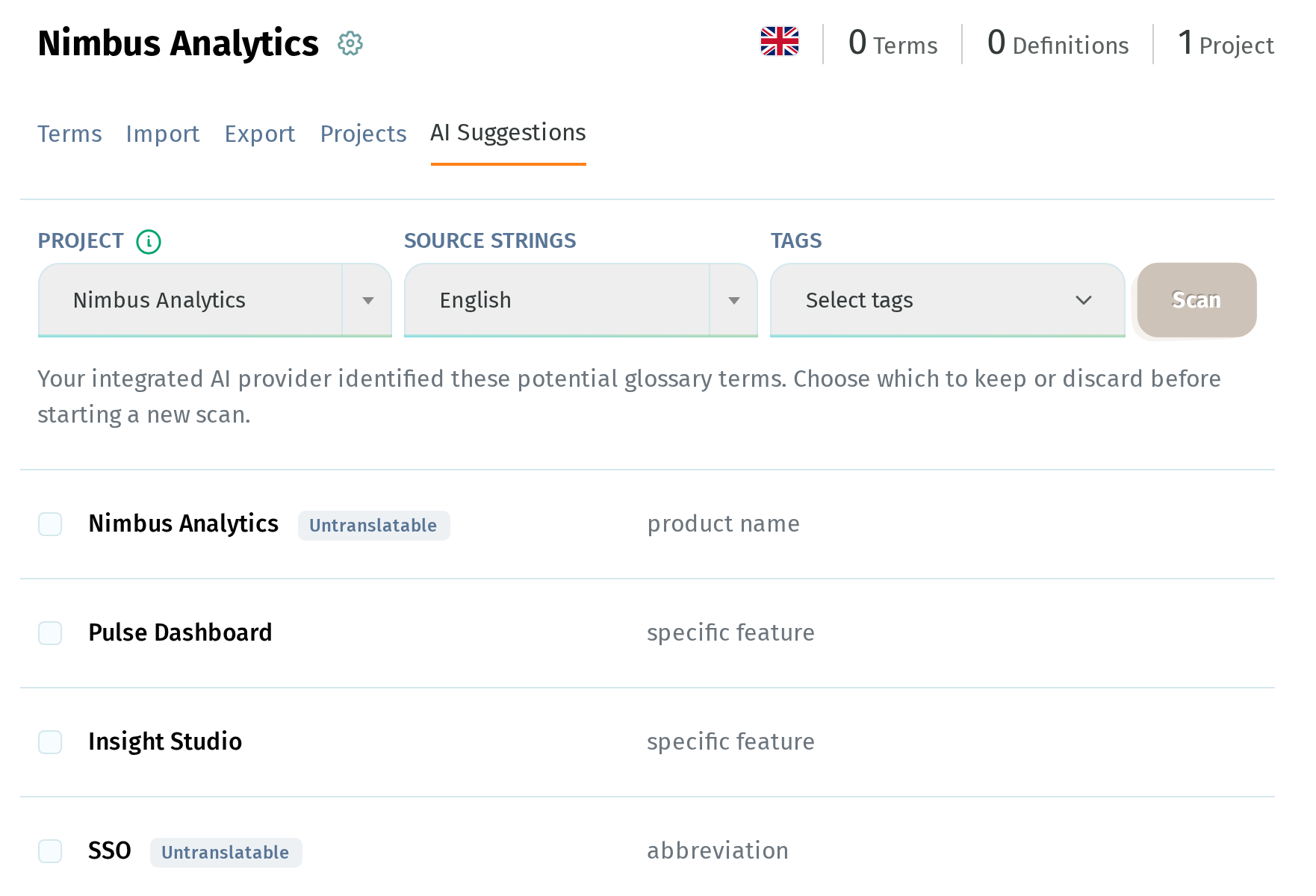
The AI's reason is used as the term description. Click the description to edit it.
Select the suggestions you want to process, or use Select All Page. For multiple pages, Select All x terms selects all suggestions.
Choose an action and click Go:
- Add to glossary - Adds the selected suggestions to the glossary.
- Discard suggestions - Removes the selected suggestions.
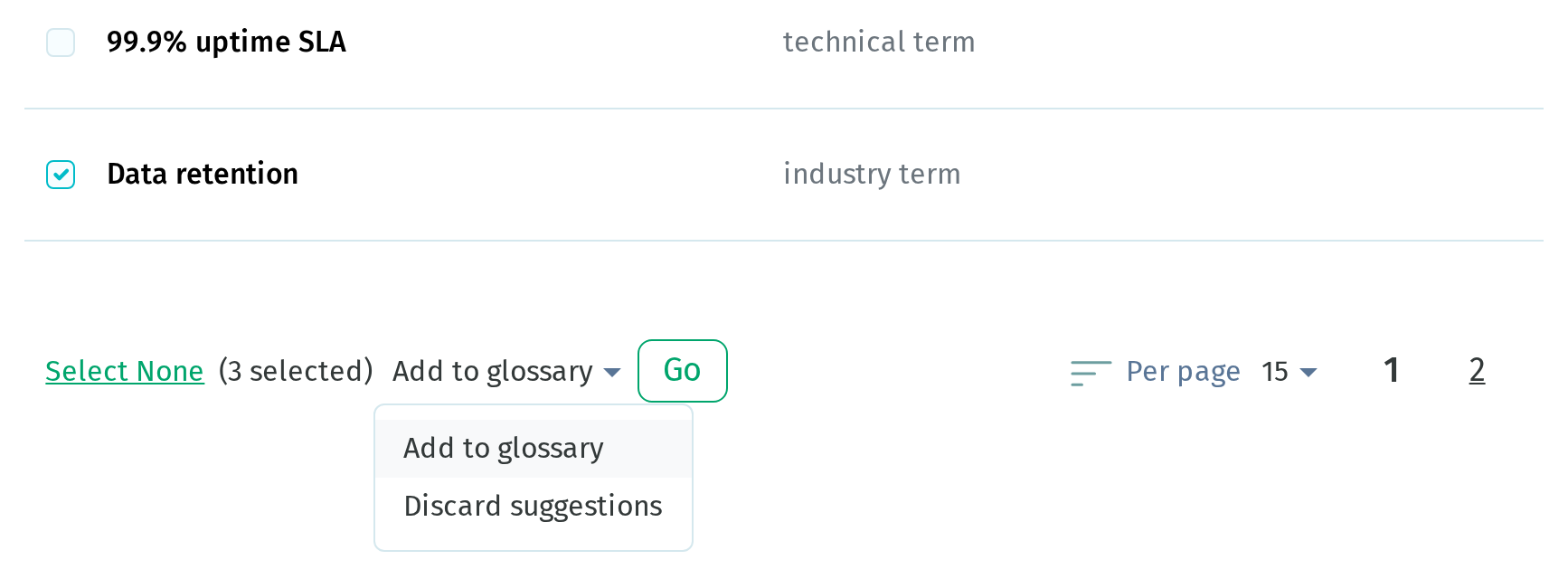
Suggestions you don't process remain in the list. The Scan button is disabled until the list is empty.
Once the suggestions are added, the number of terms is displayed, along with a link to the glossary's Terms page.
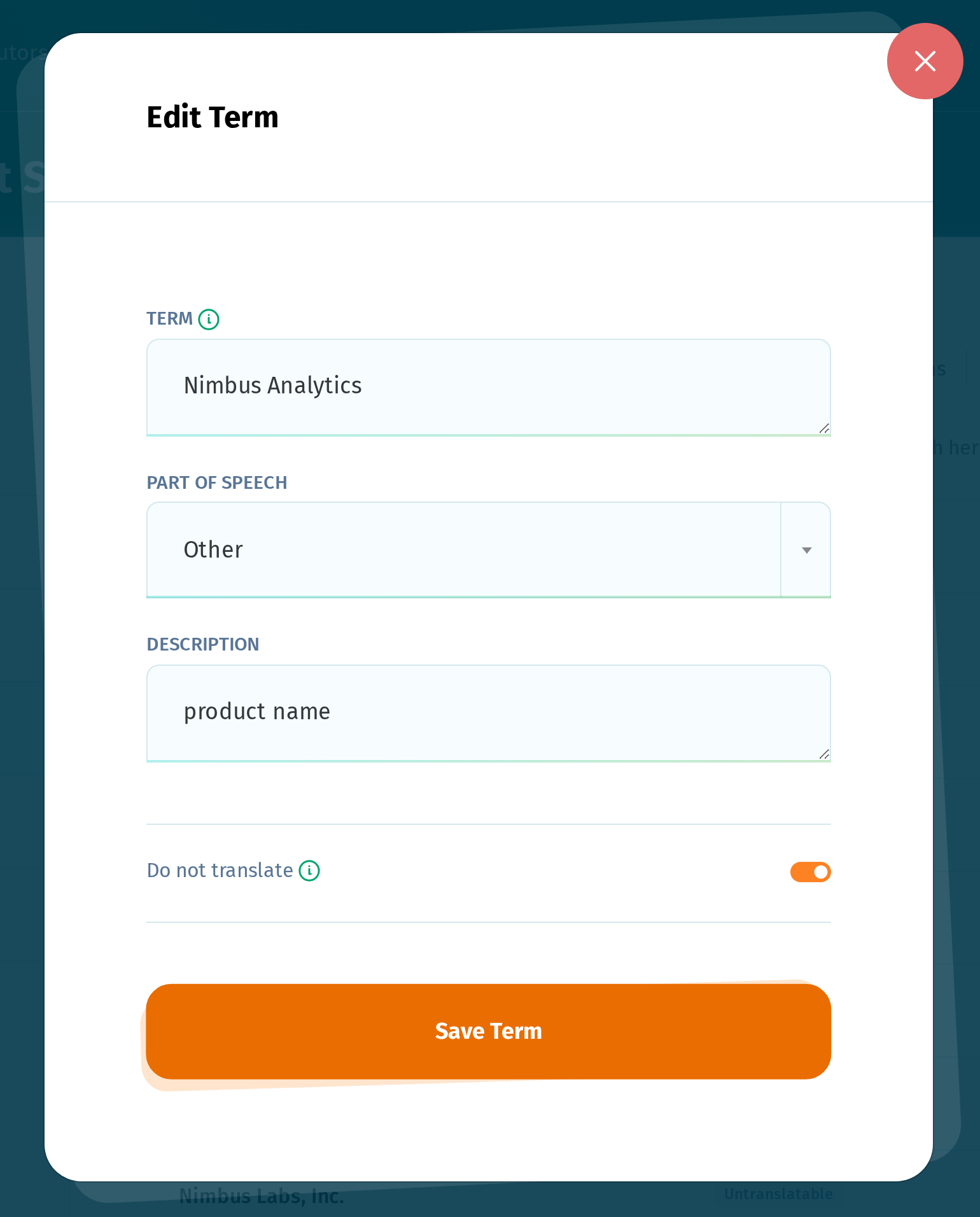
Each added term includes:
- the suggested text as the term,
- the AI's reason as its description, trimmed to 200 characters,
- Other as the part of speech, which you can change afterwards,
- Do not translate enabled if the suggestion was marked Non-translatable.
If a term can't be added to the glossary, it stays in the list. This can happen if the glossary already contains the same term and part of speech, or if the glossary entry limit has been reached.
If a scan stops before it finishes
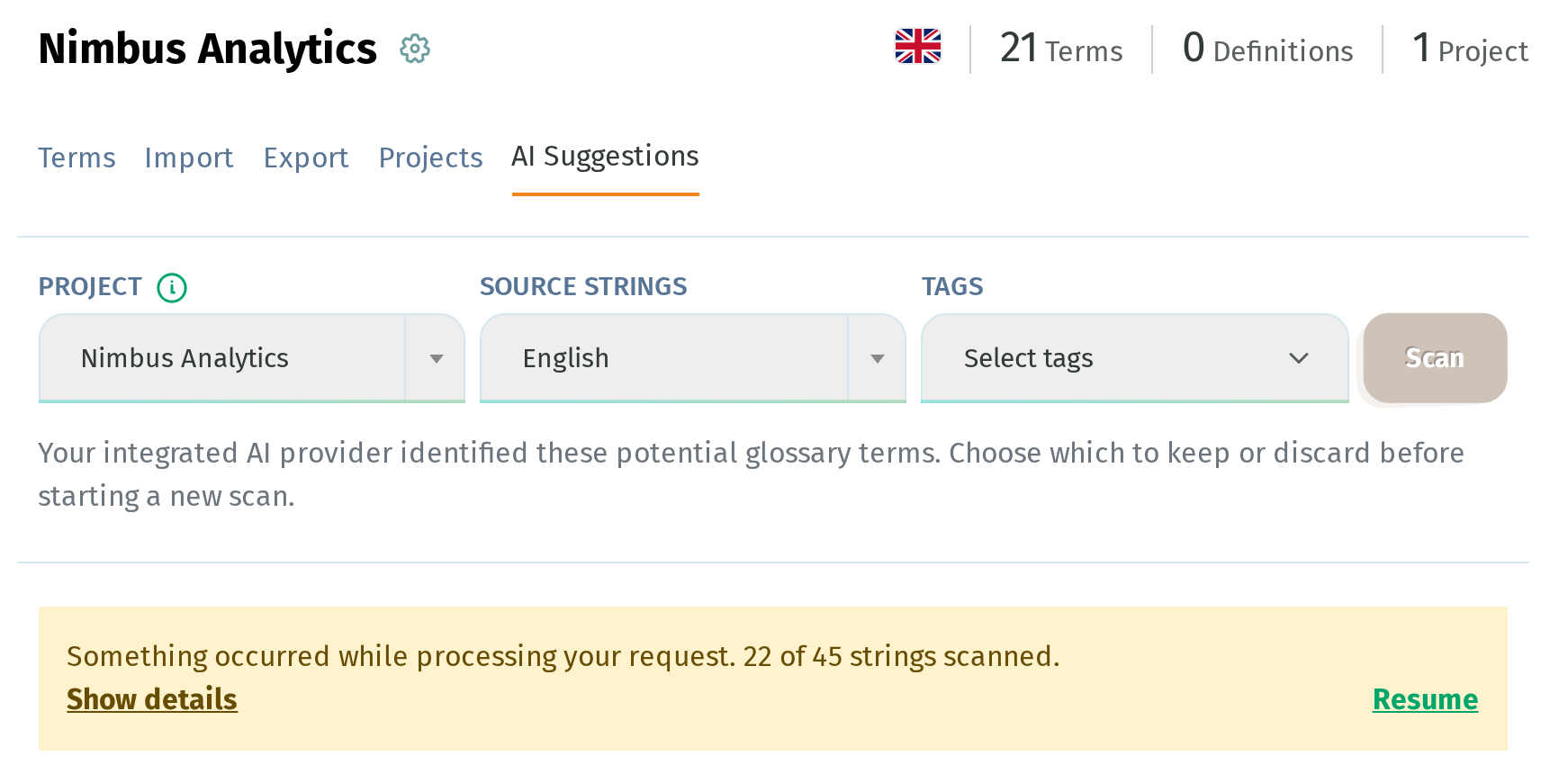
If the AI provider returns an error during the scan, the suggestions found so far are kept, and a warning shows how many strings were scanned. Click Show details to view the provider's message.
Resume continues the scan from where it stopped. Only the person who started the scan sees this option. If the scan fails on the first batch, there is nothing to resume, so a new scan is required.
Good to know
- A project can't be removed from the glossary while it has pending suggestions. Add or discard the suggestions before unassigning the project.
- Only one AI operation can run on a project at a time. If one is already running, the message There’s an AI operation in progress, please try again later. is displayed.
- If a scan doesn't finish within one hour, it is stopped and the suggestions found during the scan are discarded. You can then start a new scan.
- Anyone with access to manage glossary terms can manage the AI glossary suggestions.