The POEditor MCP server includes four Figma tools that let your AI assistant send the text in a Figma file to a POEditor project and bring the translations back as Figma variables.
What you need
- Claude Code 2.1.284 or newer, or Codex CLI 0.159.0 or newer. Older versions may run the hooks differently or skip them. Check your version with
claude --versionorcodex --version, and update withclaude updateornpm install -g @openai/codex@latest. - Python 3 for the hook installer, or Python 3.11 or newer if you use Codex.
- A Full seat in Figma if you want to import translations or unlink a file from POEditor, since both actions write to the file.
The Figma tools only work in Claude Code and Codex. POEditor doesn't connect to Figma directly. The hooks installed in your client pass data between the two MCP servers.
How to set it up
1. Add both MCP servers to your client. The Figma server must be named figma.
- In Claude Code:
claude mcp add --transport http --scope user poeditor https://mcp.poeditor.com/mcp
claude mcp add --transport http --scope user figma https://mcp.figma.com/mcp- In Codex:
codex mcp add poeditor --url https://mcp.poeditor.com/mcp
codex mcp add figma --url https://mcp.figma.com/mcp
codex mcp login poeditor && codex mcp login figma
2. Install the hooks for your client:
- In Claude Code:
curl -fsSL https://poeditor.com/public/mcp/figma/setup_figma_hooks.py | python3 - --server poeditor --host claude- In Codex:
curl -fsSL https://poeditor.com/public/mcp/figma/setup_figma_hooks.py | python3 - --server poeditor --host codexIf you added the POEditor server under a different name, put that name after --server, and use the same name when you update or uninstall the hooks. To set up both clients at once, use --host both after adding the two servers to each of them. Leaving out --host also sets up both clients, if both are installed.
The installer first checks that both servers are added and enabled in the client. If one is missing, it stops without changing any files. The check only reads your settings, so it doesn’t log you in or test the connection. In Codex, it reads your global settings, which is where codex mcp add saves the servers. In Claude Code, if you added the servers to a single project instead of with --scope user, run the installer from that project’s folder.
The installer backs up each file before changing it. Run the same command again to update the hooks later.
3. Restart your client. In Claude Code, log in to both servers with /mcp. In Codex, approve the POEditor hooks. Codex doesn’t run new or changed hooks until you approve them, so you need to do this after each update.
How to export a Figma page to POEditor
Give your AI assistant the Figma file's URL and the project name, for example:
Export https://www.figma.com/design/abc123/My-app to the POEditor project My app.
Each export covers one page. If your link points to a page or a layer on it (the link contains node-id=), that page is exported. If it doesn’t, and the file has more than one page, your assistant asks which one you want to export. You’ll also be asked how to store the text layers as terms:
- Node ID: the term is the layer’s node ID, for example
123:456. Renaming a layer or moving it to another page keeps its term. - Node Name: the term is the layer name, for example
login_button. Layers with the same name share one term and one translation. Renaming a layer creates a new term. If layers with the same name contain different texts, only one of them is exported, and your assistant tells you which names were affected. - Page + Node ID: the term is the page ID and the node ID together, for example
page:0:1|node:123:456. Moving a layer to another page creates a new term.
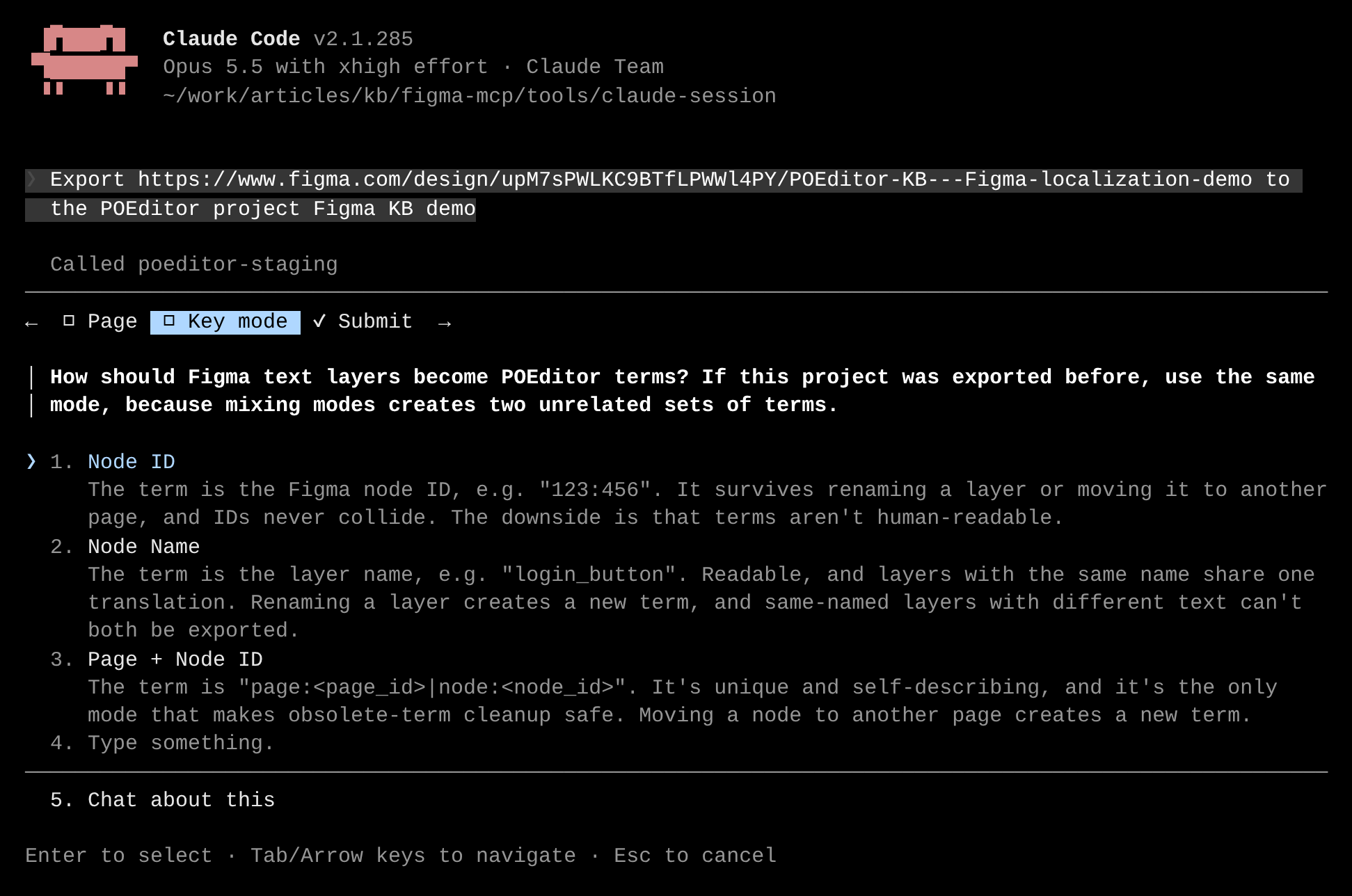
Use the same option each time you work with the same project. Using different options for the same file creates separate sets of terms.
The texts are added as terms, and each text is also saved as the term’s translation in the project’s Default Reference Language. If the project doesn’t have a reference language yet, you’ll be asked which language the texts are in. The export doesn’t make any changes to the Figma file.
After you import a page, its text layers use variables, so the next export doesn't send them as new texts. Instead, POEditor receives the translations that were changed in Figma since the last import, and those translations are marked as fuzzy. If the same translation was also changed in POEditor, nothing is written for it and you’ll see both versions. If you choose to keep the Figma version, it’s saved as a regular translation.
How to import translations into Figma
Ask your AI assistant to import the translations, for example:
Import the translations from the POEditor project My app into https://www.figma.com/design/abc123/My-app.
The import creates a variable collection named POEditor Localization in the file, with a mode for each language and a variable for each term. Each text layer is then linked to its variable.
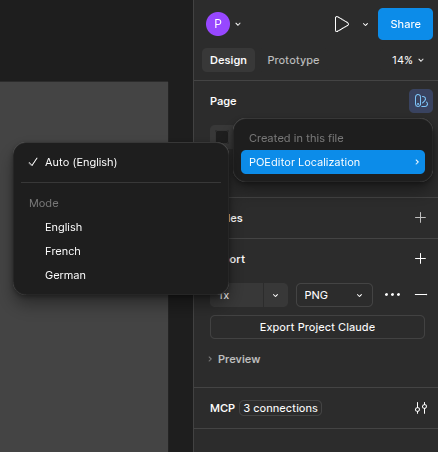
To see a page or frame in another language, switch its mode in Figma.
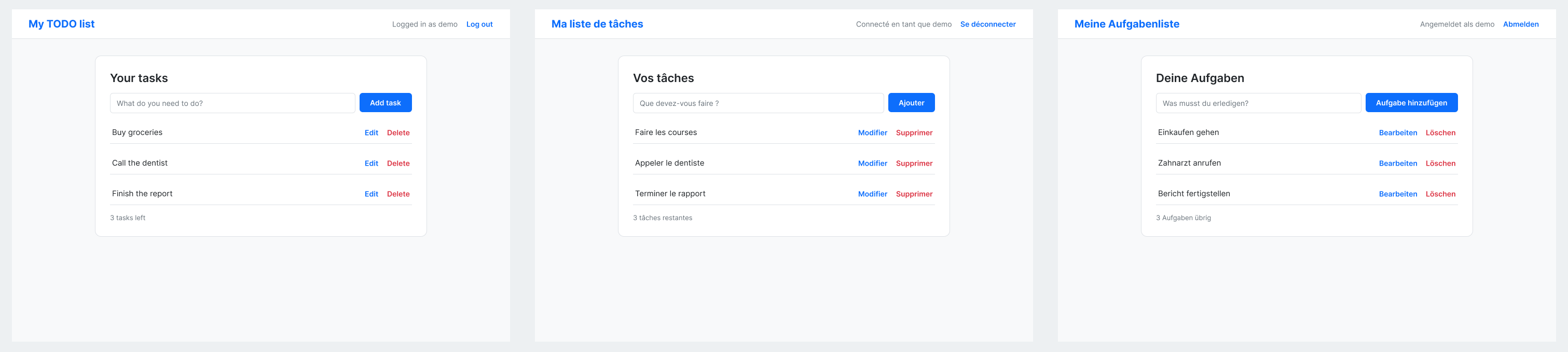
Like an export, an import covers one page at a time and asks how the terms were stored. You can import all the project’s languages or select specific languages, up to 10 including the reference language. With Node ID and Node Name, terms belonging to other pages are reported as skipped until you import those pages as well.
Run the import again when the translations change in POEditor. It doesn’t delete variables or terms. If a translation was edited in Figma after the last import, the import keeps the Figma text and tells you about it, so you can export it to POEditor. You can also ask your AI assistant to replace those edits with the translations from POEditor.
How to remove obsolete terms
After deleting text layers in Figma, you can ask your AI assistant to remove the obsolete terms from the POEditor project. It first lists the terms whose layers are no longer in the file and deletes them only after you confirm. Nothing changes in the Figma file.
Which terms can be deleted depends on how they were stored:
- Page + Node ID: the terms are deleted when you confirm. A layer moved to another page also counts as obsolete.
- Node ID: the terms are deleted when you confirm. Check the list first, because a term added manually that looks like a node ID is included too.
- Node Name: you only get the list, since a missing layer name can also mean that the layer was renamed. Delete the terms yourself in POEditor after checking them.
How to unlink a Figma file from POEditor
If you no longer want the file to be connected to POEditor, ask your AI assistant to unlink it. This deletes the POEditor Localization collection and its variables from the file and turns every linked text layer back into plain text, using the language shown at that moment. Nothing changes in POEditor.
You’ll see a preview before anything is removed. Before you confirm, make sure every page and frame shows the language you want to keep. If some pages or frames show a language other than the reference language, the unlinking doesn’t go ahead unless you tell your assistant that you want to keep that language.
You can then export the file again to update the project or import the translations to create the collection again.
How to uninstall the hooks
To stop using the Figma tools, uninstall the hooks and remove the POEditor server from your client.
- In Claude Code:
curl -fsSL https://poeditor.com/public/mcp/figma/setup_figma_hooks.py | python3 - --server poeditor --host claude --uninstall
claude mcp remove --scope user poeditor- In Codex:
curl -fsSL https://poeditor.com/public/mcp/figma/setup_figma_hooks.py | python3 - --server poeditor --host codex --uninstall
codex mcp remove poeditor
Then restart your client. The uninstall removes the POEditor Figma hooks and, in Codex, the automatic approval of figma_export and figma_import. It leaves your other hooks and settings as they are, and Figma stays connected for other uses, along with the automatic approval of Figma’s use_figma tool in Codex. Use --host both to uninstall from both clients. You can run the command even after removing the POEditor server, and running it a second time changes nothing.
In Codex, remove the server with codex mcp remove rather than by editing config.toml, since the command also removes the server’s tool settings.
Good to know
- POEditor doesn’t save which Figma file belongs to which project, so name both in every request.
- Figma limits the number of MCP requests an account can make, depending on its plan and seat. See Figma’s rate limits.
- In Claude Code, the
/mcp__poeditor__figma_localization_guidedcommand walks you through any of the four tasks.
Troubleshooting
- The export says the hook didn’t run (
figma_host_snapshot_required), or another Figma tool fails with a JavaScript syntax error.
The hooks aren’t installed or didn’t load correctly. Run the installer, restart your client and, if you use Codex, approve the hooks. If you added the POEditor server under a different name, make sure you passed the same name to --server.
- The export reports
hook_version_mismatch.
Your hooks are out of date. Run the installer again to update them. To see which hooks are installed, run the installer with --check --host claude or --check --host codex instead of --server poeditor. This doesn’t change any files.
- The installer says an MCP server “must be registered and enabled”.
Add both servers to the client you selected and make sure they’re enabled. Check that the name after --server matches the name you gave the POEditor server. If you use only one client, add --host claude or --host codex to the command.
- Codex says
invalid transportafter you removed the POEditor server by hand.
The server’s tool approvals are still in config.toml without its URL, so Codex can’t load its settings. Run the installer with --uninstall and the name the server had, as shown in How to uninstall the hooks. It removes the leftover approvals, and Codex loads its settings again.
- The uninstall says the approval layout “cannot be safely cleaned automatically”.
The installer can’t safely edit the way the approvals are written in your config.toml, so it didn’t change any files. Remove the approval_mode = "approve" settings for figma_export and figma_import under the POEditor server yourself, keep the other settings, and run the uninstall command again to remove the hooks.