The Images feature lets you upload screenshots and other images to localization projects, where the text in them is automatically matched to your strings, giving translators visual context.
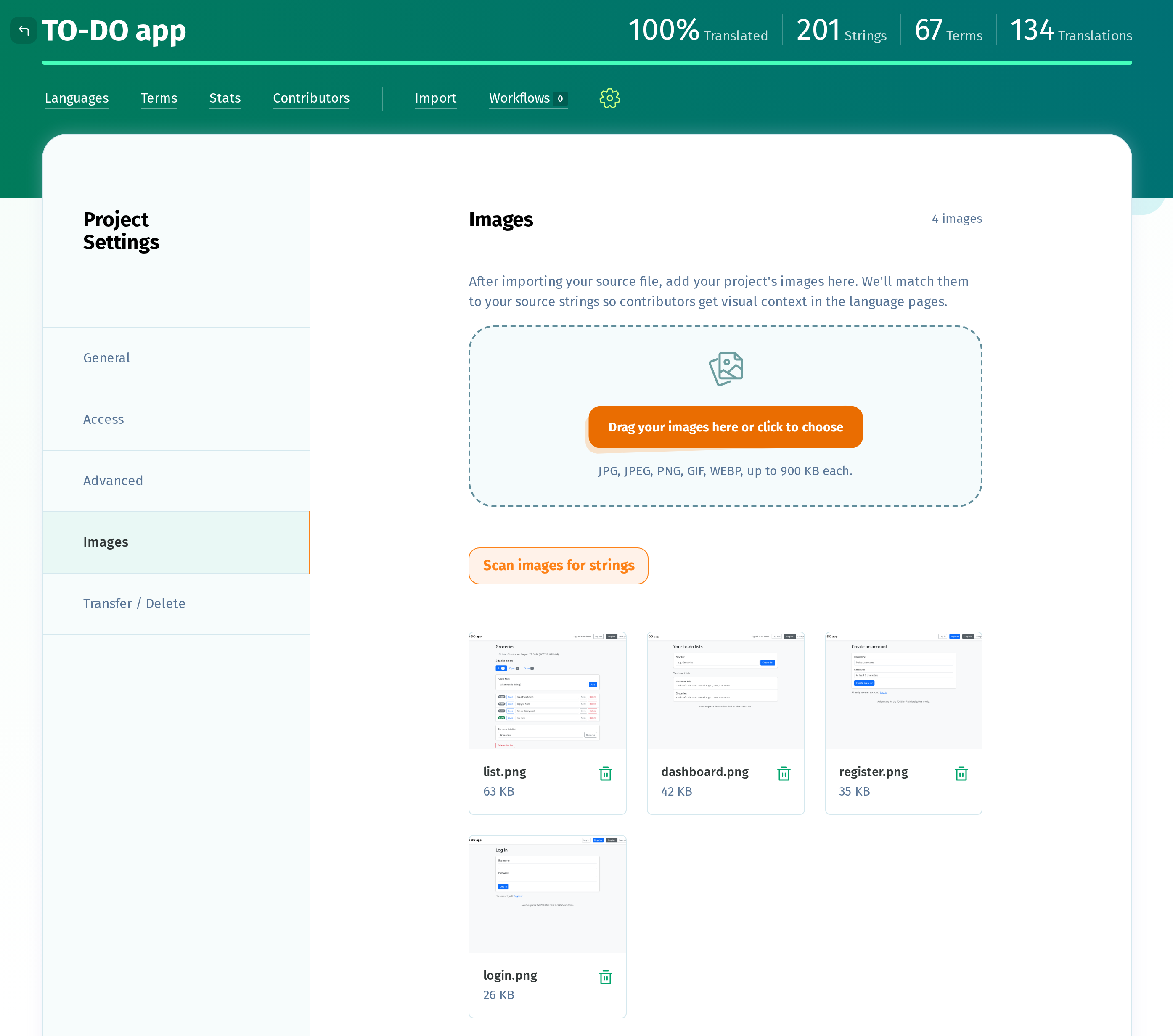
Project owners and administrators can add images from Project Settings > Images.
Images count toward the project owner’s account. An account can store up to 1,000 images across all its projects, or up to 20 images on the Free plan.
How to upload images
Drag your images into the upload box, or click the button to choose them from your computer. JPG, JPEG, PNG, GIF, and WEBP files are supported, up to 900 KB each.
To remove an image, click the trash icon on its card. Deleting an image doesn't delete the strings matched to it, only the matches.
Once a project has 12 or more images, a Search by file name box appears above the images, for ease of navigation.
How to match strings automatically
Click Scan images for strings to read the text in your images and match it to the project's strings. The scan compares the text found in each image with the strings' translations in the Default Reference Language and with the terms themselves.
The scan only includes images that don't have any matched strings yet.
When the scan finishes, the Review matched strings page opens. It shows the images one at a time, with a box around each string found.
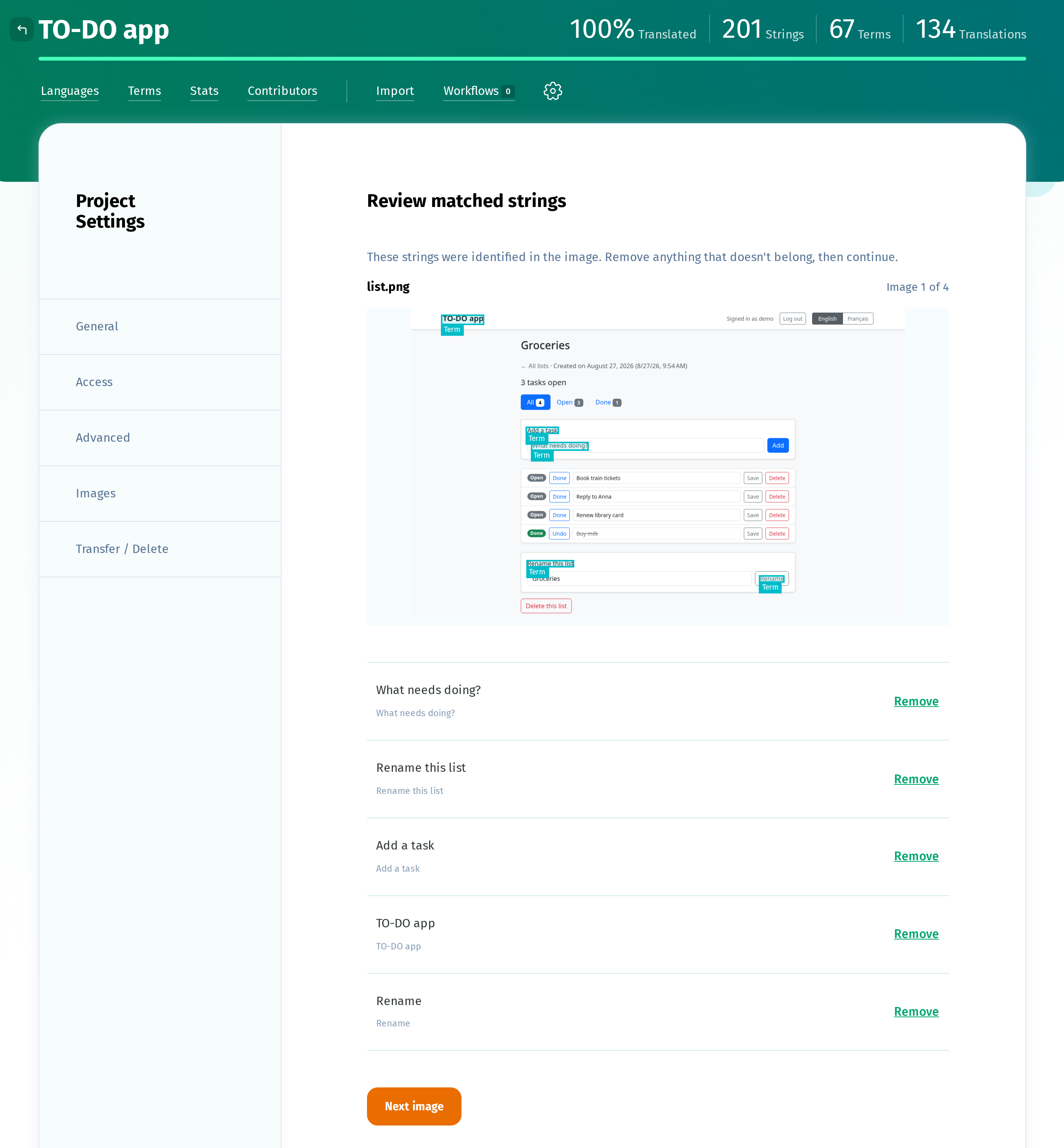
If a string was matched incorrectly, click Remove next to it. Then click Next image to continue.
On the last image, click Done to return to the Images page.
If you leave the review before reaching the end, the images you haven't reviewed yet remain available. Click Review matched strings on the Images page to continue.
How to match strings manually
Click an image to open it in the editor, where you can add any strings the scan missed.
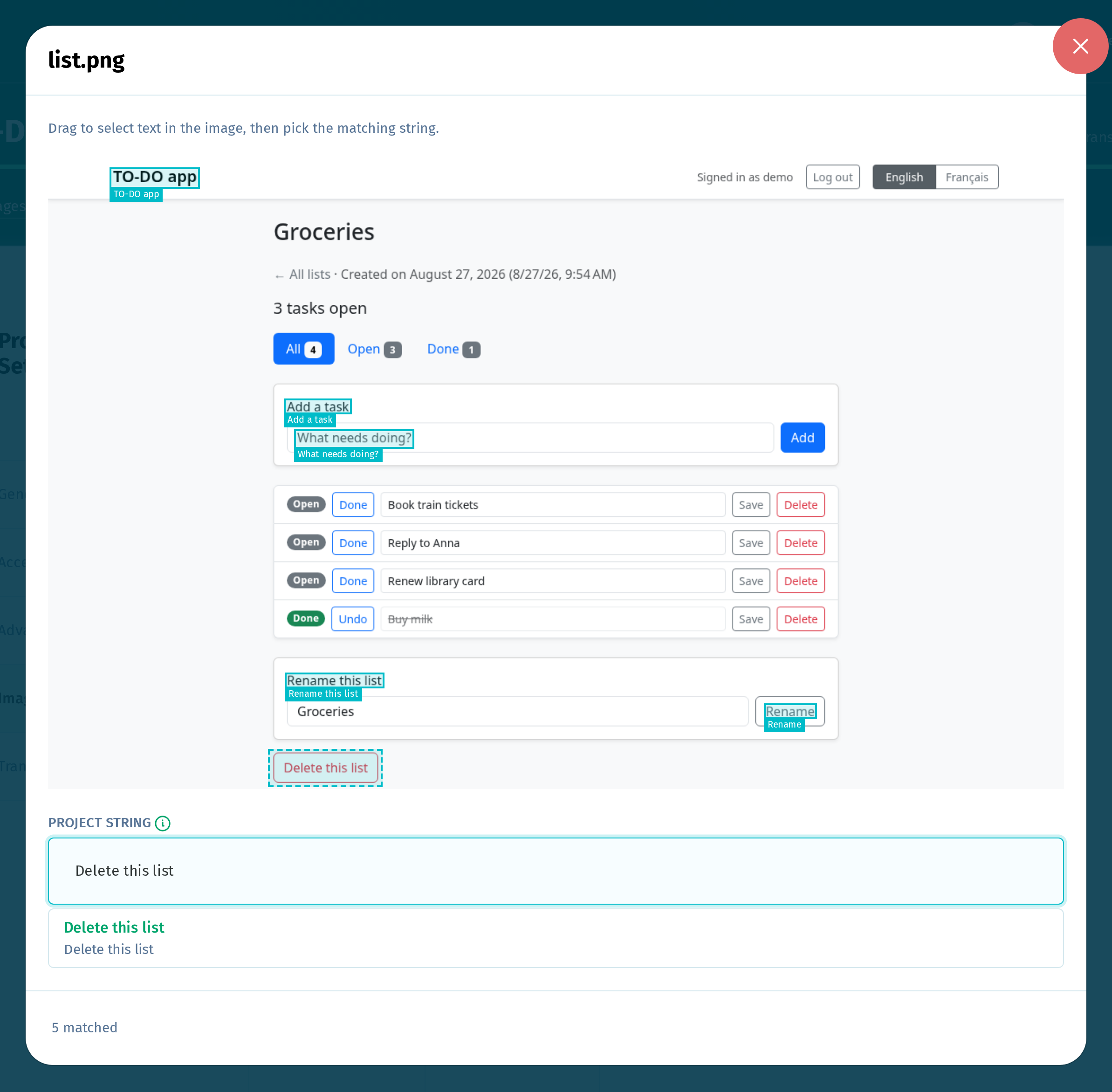
Drag to draw a box around the text in the image. The text inside the box is filled in automatically under Project string. If the text isn't read correctly, enter it manually. Then select the matching string from the results.
To remove a match, click its box and then click Unmatch.
How contributors see the images
On the Language page, strings matched to at least one image have a camera icon to the left of the row. The icon appears when you hover over the row, or when you click inside a translation box. As keyboard shortcut, you can also select a row with the Tab key and press S.
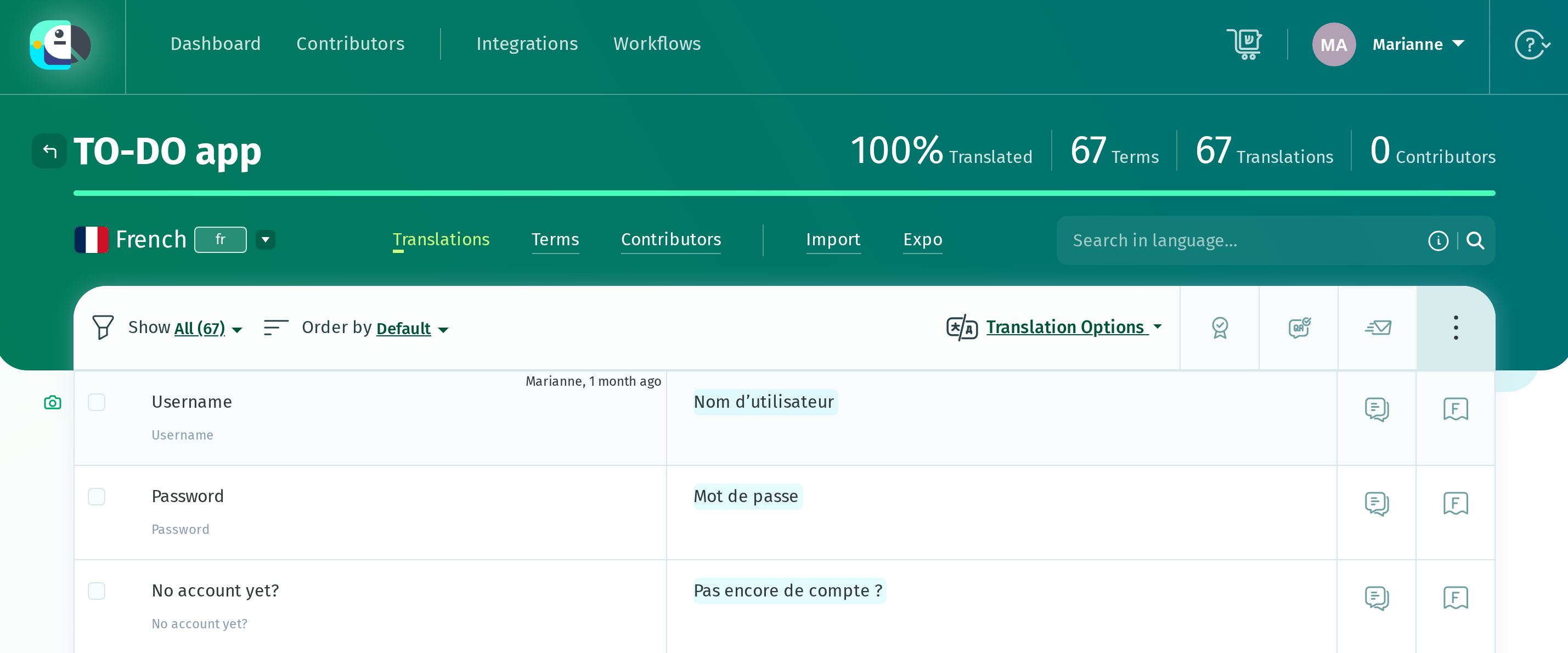
Click the camera icon to open the image with the string highlighted. If the string is matched to more than one image, use the arrows at the bottom of the window to move between the images.
Double-click the image to zoom in, then drag to move around it.
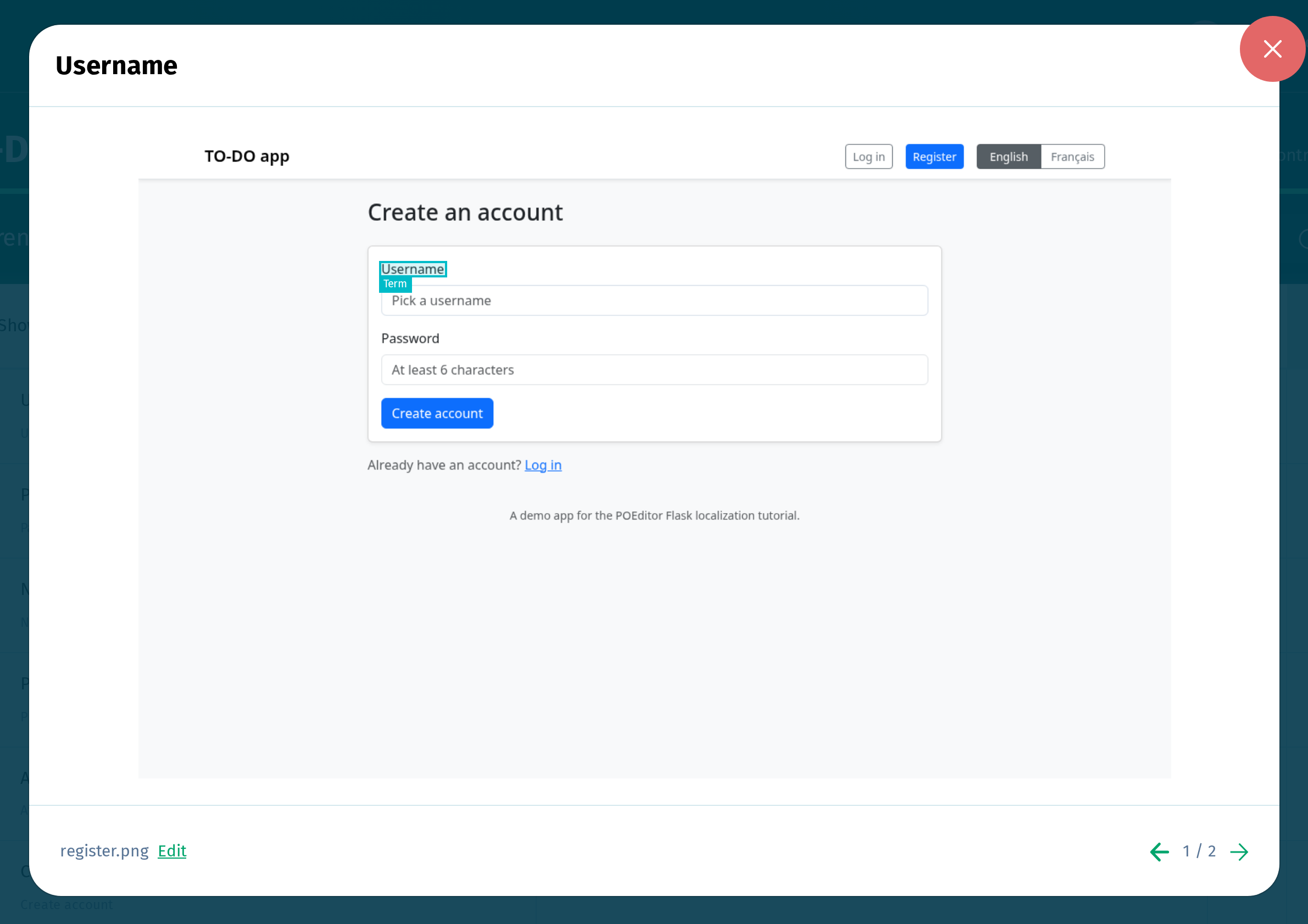
Project owners and administrators also see an Edit link next to the file name. Click it to go to the main image gallery in the project settings, where you can apply changes to the uploaded images.
When a project is transferred to another account, its images are transferred with it. When a project is deleted, its images are deleted too.