Placeholders (also called variables, format specifiers, or parameters) are the dynamic parts of a string that get replaced with real values at runtime — for example a name, a count, or a date. Commonly used placeholder formats include:
%@%s%d%f%1$s%1$d%2$s%2$d%3$s%3$d%4$s%4$d%number%%(amount)%{any_string_without_whitespaces}{any_string_without_whitespaces}{{amount}}
Placeholders are imported into POEditor as-is, and are exported exactly as they appear in your project — POEditor doesn't alter or reformat them. Because a mistranslated or missing placeholder can break an app at runtime, POEditor gives you several ways to keep placeholders intact and consistent across all your target languages:
- QA Checks
- Glossaries
- Quality Evaluation
- Workflows
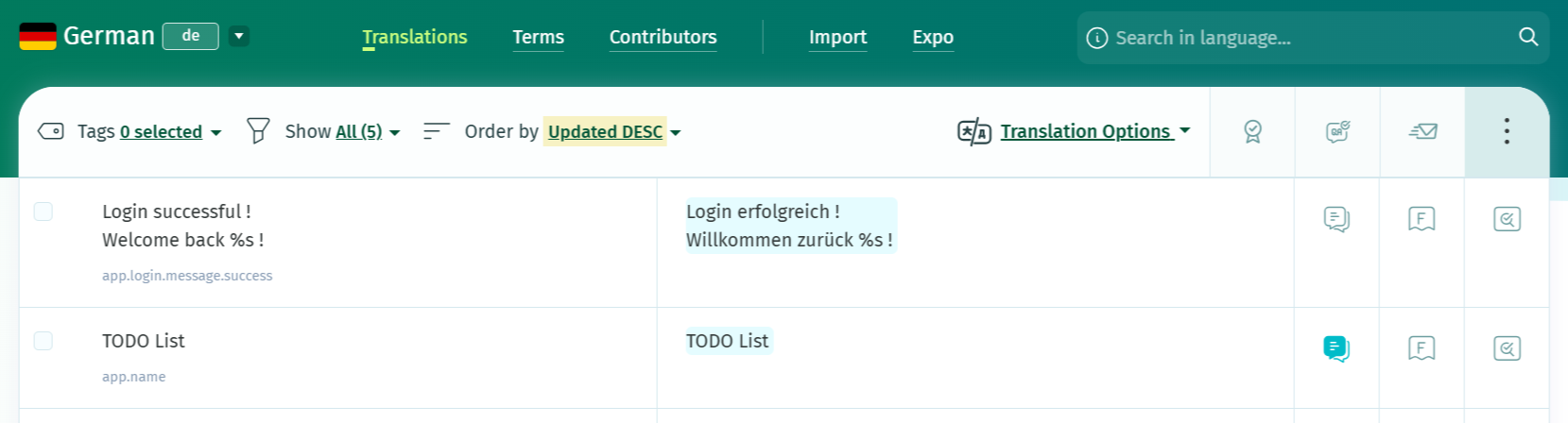
1. Catching placeholder errors with QA Checks
The QA Checks module inspects your translations for a range of issues, including placeholder mismatches.
Saving a translation triggers a real-time check that can be turned off in Account Settings. The Run QA Checks button on any translation page (unavailable on the Default Reference Language) allows you to check placeholders in bulk across a whole language, e.g. after a large import or an automatic/AI translation pass. Which checks run is configurable in Project Settings.
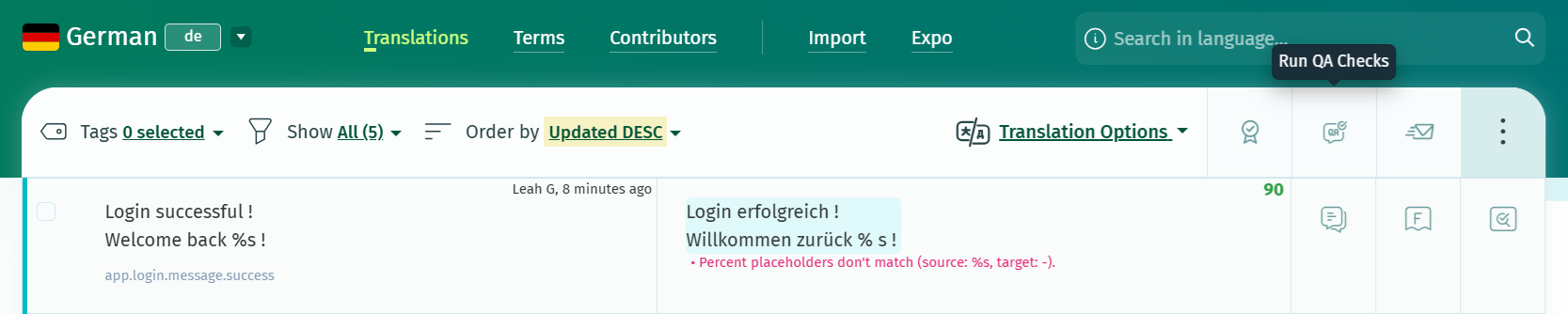
Project owners and admins can fine-tune which checks run — including the placeholder-related ones — from Project Settings > Advanced > QA Checks > Edit.
2. Detecting and fixing inconsistencies with Quality Evaluation (QE)
AI Translation Quality Evaluation (TQE) uses AI to score translations and flag issues — including missing or broken placeholders — by type and severity, so you can quickly see which translations need a second look and why.
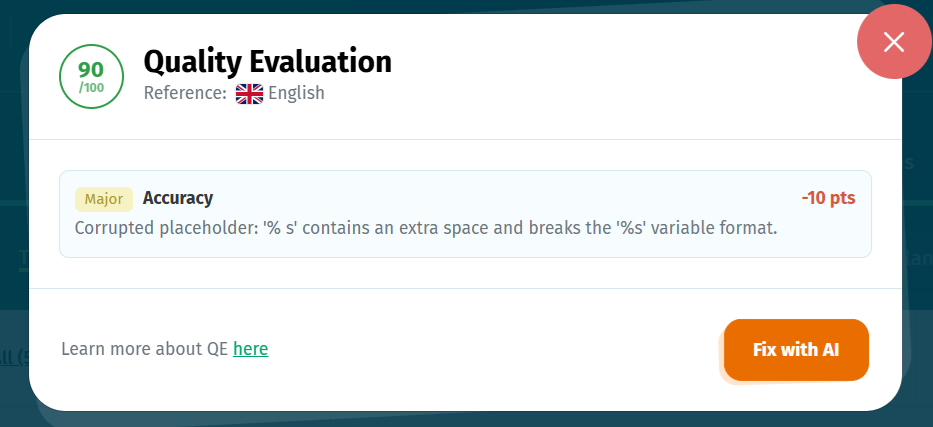
Because Quality Evaluation is AI-based, it can also help you go one step further than detection: reviewing a flagged placeholder issue in context makes it easier to correct the translation with AI assistance rather than only being told it's wrong.
3. Keeping placeholders consistent with Glossaries
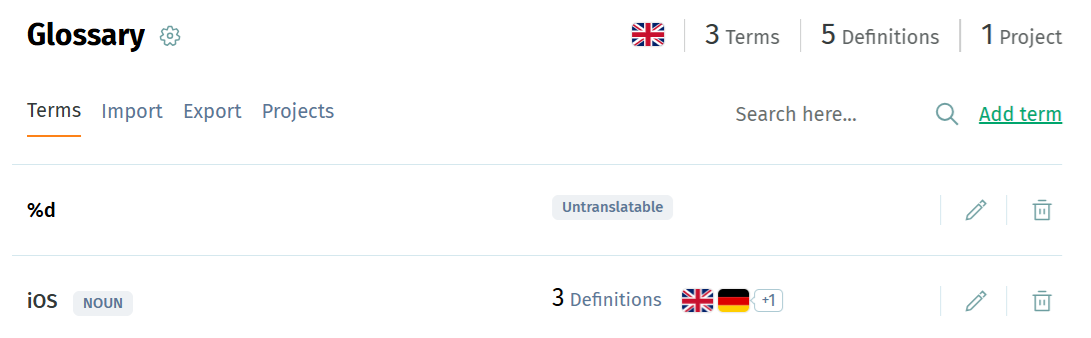
Glossaries (available from the Premium plan) help make sure placeholders and other fixed elements are handled the same way everywhere in a project. All you need to do is mark the placeholders as non-translatable in the glossary.
Translators see this in the editor, and the flag also carries through to automation features, such as Automatic Translation, AI translation, QA's Glossary items check, and to Quality Evaluation.
4. Automating placeholder checks with Workflows
Workflows (available starting with the Plus plan) let you chain localization steps — including QA — so that placeholder checks run automatically instead of relying on someone to trigger them manually.
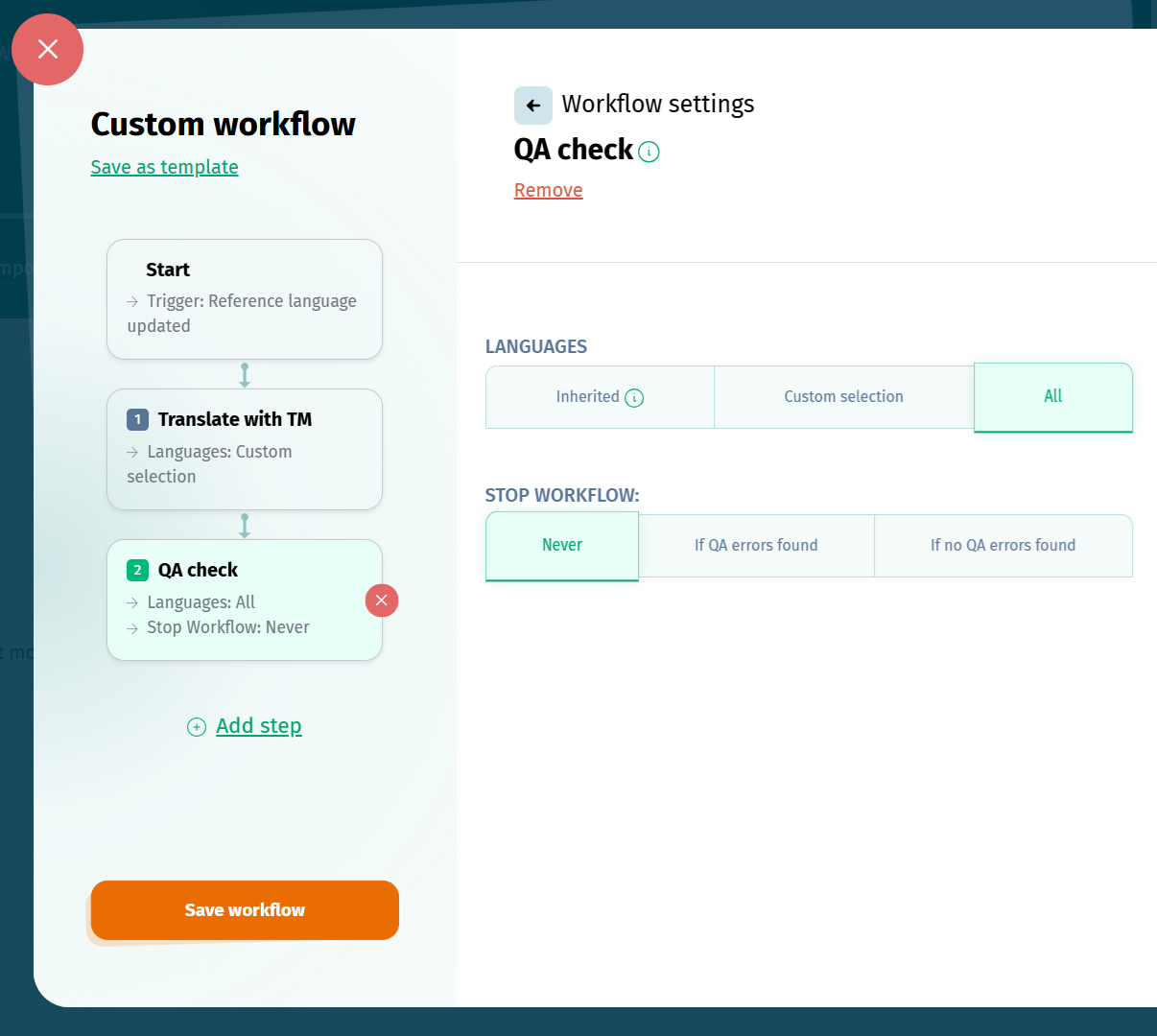
A Quality Assurance (QA) step can be added to any workflow to run QA Checks — placeholder checks included — on a chosen set of languages: those inherited from the previous step, a custom selection, or all project languages. Based on the result, you can configure the workflow to:
- keep running regardless of the QA outcome,
- stop if errors are found, or
- stop if no errors are found.
If a Notify Users step is included later in the same workflow, the errors identified by the QA step are included in the report emailed to the selected users — so a team can be alerted to placeholder problems without checking the project manually.
Workflows can be triggered manually, on a schedule, or by project events (such as a new language being added or a language reaching 100% completion rate), which makes it possible to catch placeholder issues right after automatic translation, AI translation, or a Git import step runs — before they reach a release.