POEditor's AI integrations use default prompts to translate and adjust your content. These defaults are optimized for translation quality and cost efficiency, but every project has different terminology, tone, and style requirements — which is why POEditor lets you customize each prompt, or write new ones, using the Add custom prompt option in the settings of your AI integration.

Translation prompt types
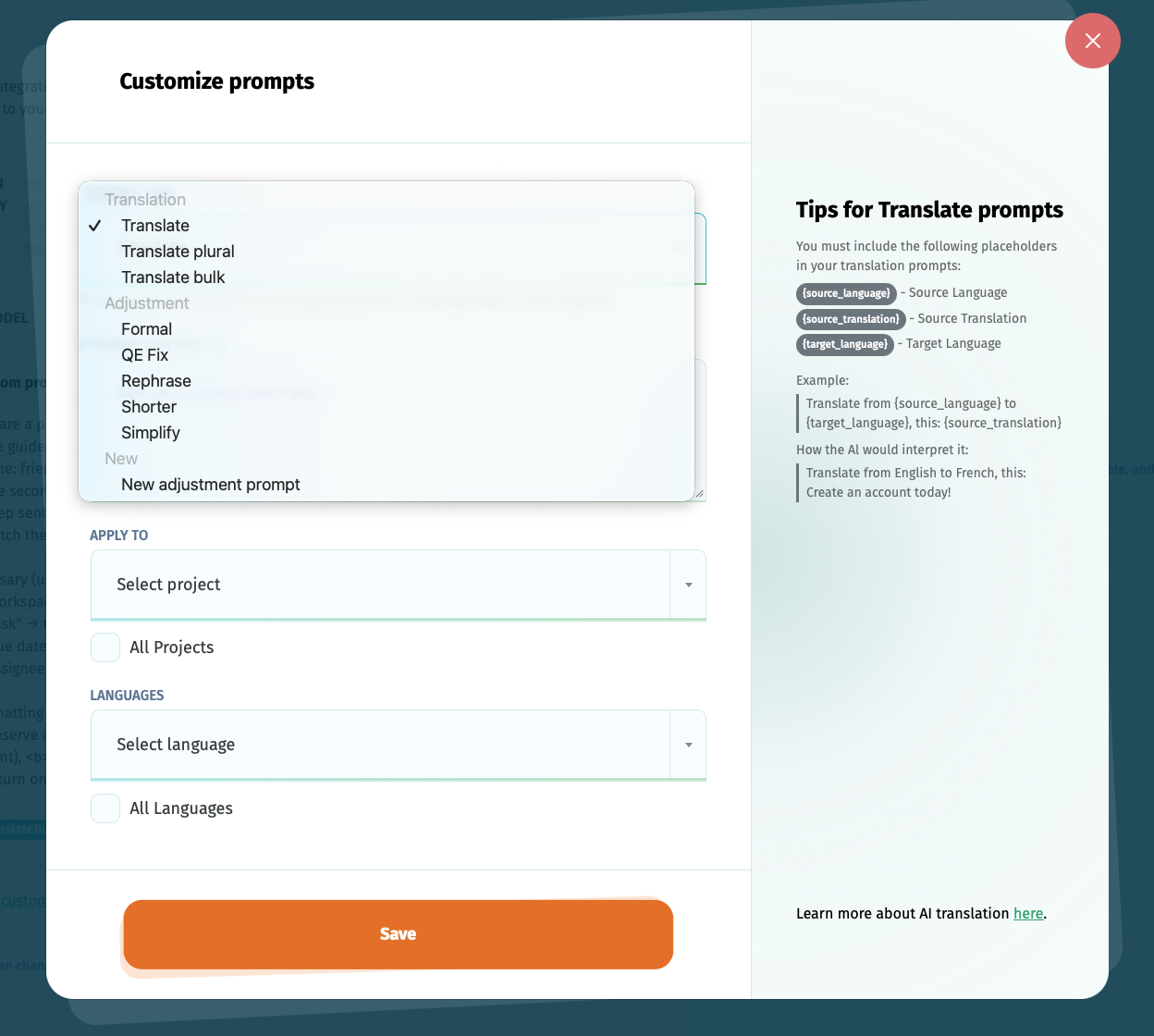
Translation prompts generate a brand-new translation for a string that doesn't have one.
- Translate — translates singular strings one at a time on the language pages. Required placeholders:
{source_language},{source_translation},{target_language}. - Translate Plural — translates plural strings one at a time on the language pages. Required placeholders:
{source_language},{source_translation},{target_language},{form}. - Translate Bulk — translates multiple strings at once, both on the language pages and in workflows. Unlike the other translation prompts, the default Translate Bulk prompt itself isn't editable — instead, you can add a comment to it to guide how the fix is made.
Adjustment prompt types
Adjustment prompts modify a translation that already exists, rather than generating one from scratch.
- Formal — makes an existing translation more formal. Required placeholder:
{target_translation}. - Simplify — makes an existing translation simpler. Required placeholder:
{target_translation}. - Shorter — shortens an existing translation. Required placeholder:
{target_translation}. - Rephrase — rephrases an existing translation. Required placeholder:
{target_translation}. - New adjustment prompt — lets you write your own custom adjustment prompt beyond the built-in ones above. Required placeholder:
{target_translation}. - QE Fix — fixes an existing translation based on issues flagged by Quality Evaluation. Unlike the other adjustment prompts, the default QE Fix prompt itself isn't editable — instead, you can add a comment to it to guide how the fix is made.
Scoping custom prompts to specific projects and languages
When you save a custom prompt, you don't have to apply it everywhere. The Add custom prompt form lets you set:
- Apply to — one or more specific projects, or All Projects.
- Languages — one or more specific target languages, or All Languages.
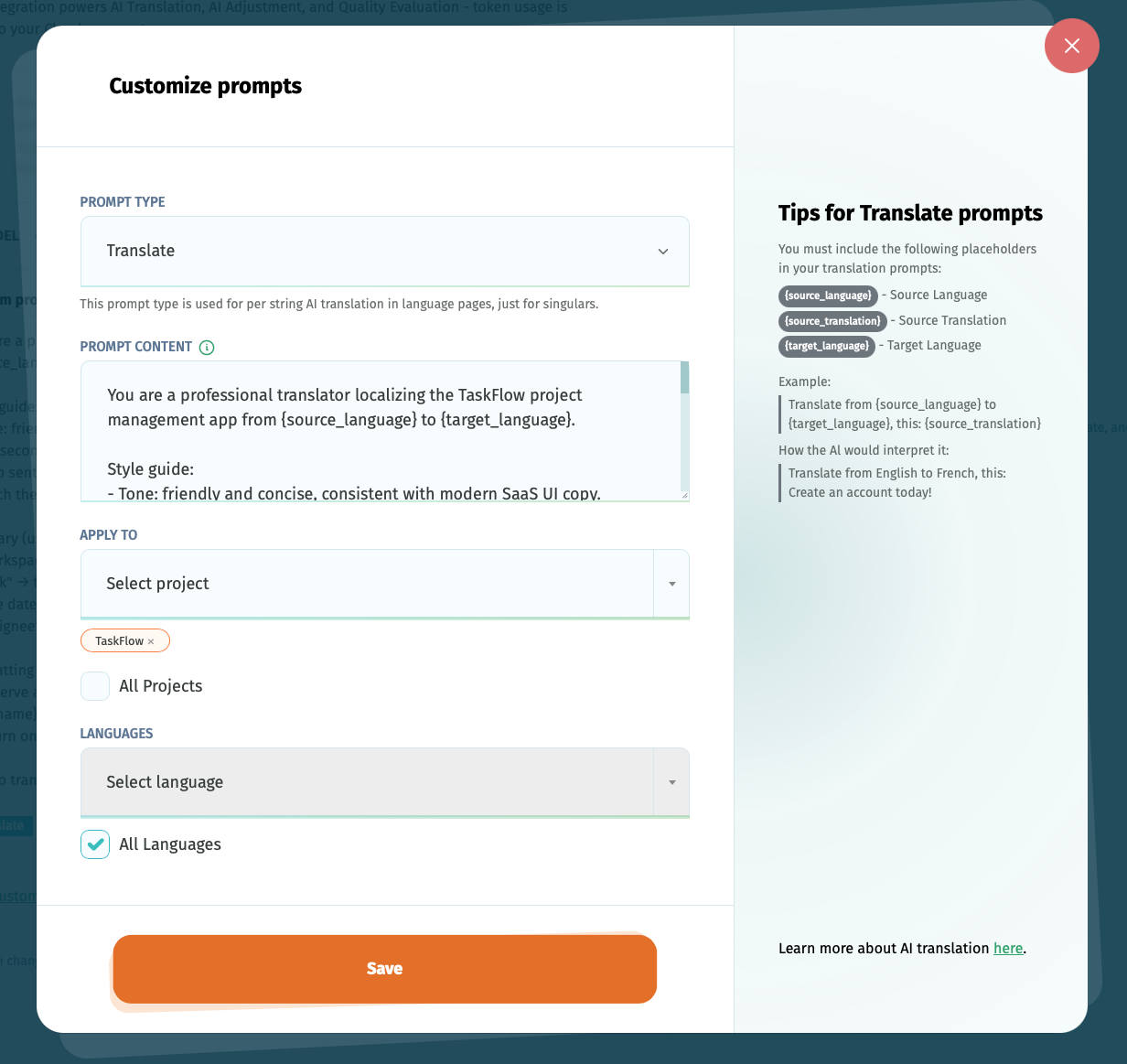
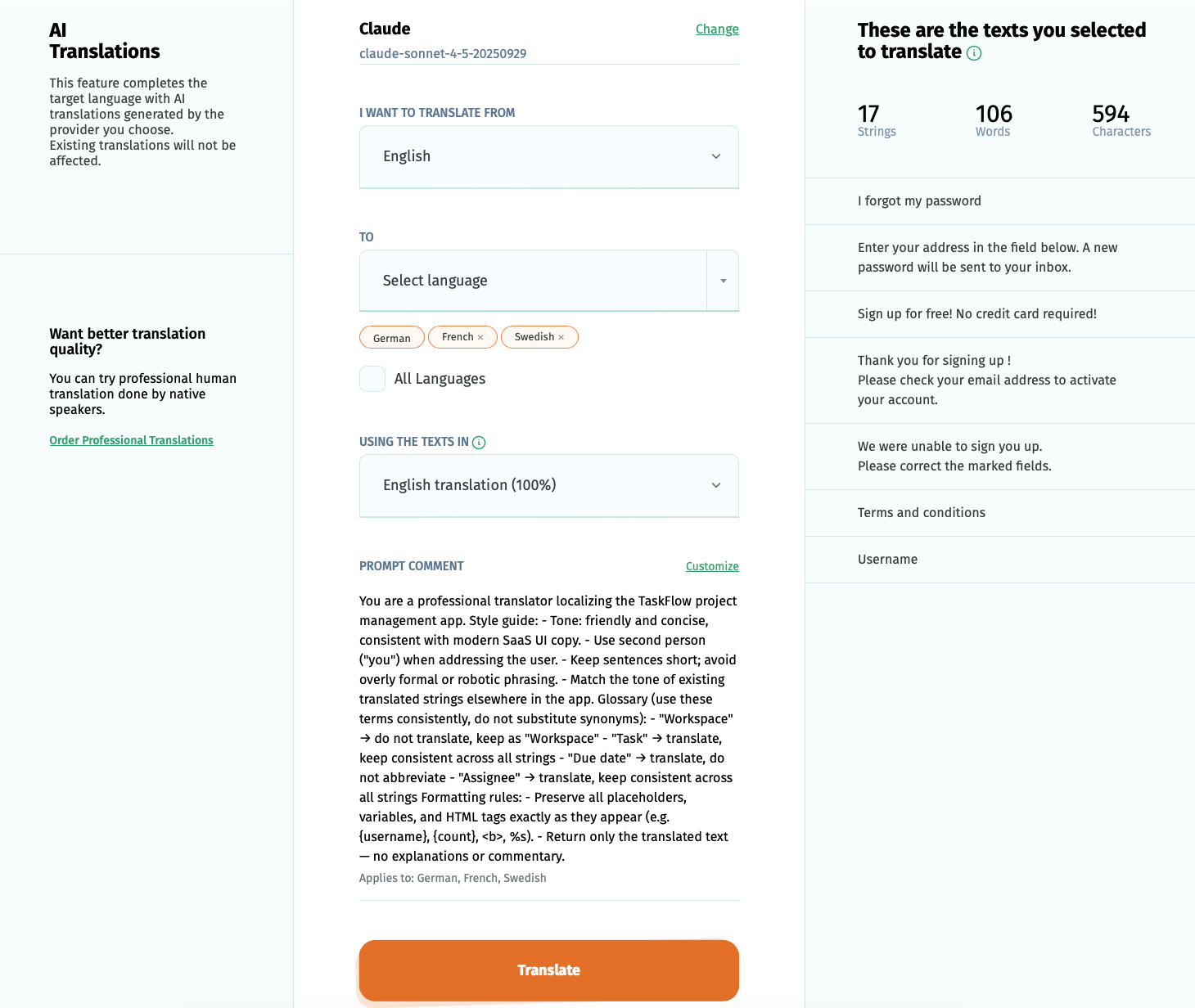
This lets you, for example, use a stricter style guide for one project while leaving the default prompt in place for others, or apply a custom prompt only to certain target languages within the same project.
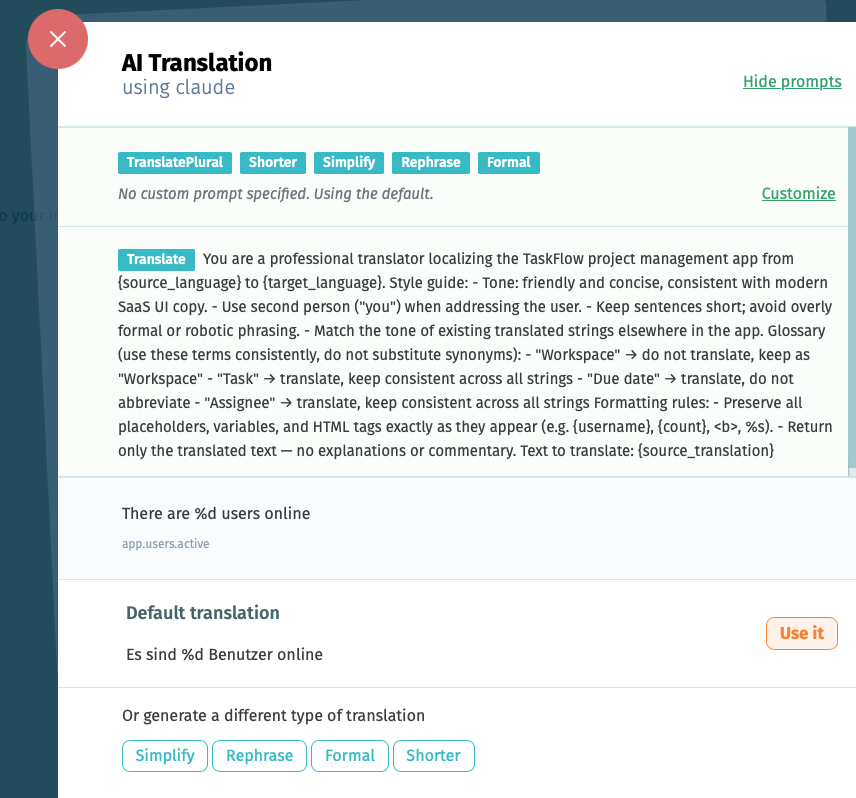
If multiple custom prompts overlap for the same project/language combination, the most recently saved one takes precedence.
Good to know
- If your project has plural forms enabled for terms, customize both the Translate prompt (for strings without plural forms) and the Translate Plural prompt (for strings with plural forms) — otherwise plural strings will fall back to the defaults.
- Every prompt type except Translate and Translate Plural is used to adjust an existing translation, not to generate a new one.
- QE Fix is the only prompt where you add a comment to guide the default prompt rather than editing the prompt text directly.
- If a glossary is assigned to your project, terms with target-language definitions or terms marked as untranslatable are automatically pulled into both translation and adjustment prompts for the integrated LLM.
FAQ
Can I add my own custom adjustment prompt in POEditor?
Yes. Use the New adjustment prompt option and include the {target_translation} placeholder, which is required for all adjustment prompts except QE Fix.
Do I need to customize both Translate and Translate Plural?
Only if plural forms are enabled for terms in your project. If they are, both prompts need to be filled in so plural strings translate correctly.
Why can't I edit the QE Fix prompt or the Translate Bulk prompt like the others?
The QE Fix and Translate Bulk default prompts are fixed and not editable. What you add to the customization input will be sent as a comment to the LLM, along with the default prompt.