 POEditor
ASP.NET Core is Microsoft’s open-source framework for building web apps and APIs in C#. It runs on Windows, Linux and macOS and includes built-in support for localization.
If your app is available in several languages, you’ll need to account for more than translated text. Dates, numbers and other values should follow the conventions of each language, too. Internationalization (i18n) prepares your code to handle different languages, while localization (l10n) provides the translations and language-specific formatting.
In this tutorial, we’ll add French to an ASP.NET Core Razor Pages TO-DO app. We’ll use IStringLocalizer and .resx resource files to translate the interface, including plural forms and validation messages, and adjust date and number formatting for each language.
Overview
- Registering the localization services
- Creating a shared .resx resource file
- Using IStringLocalizer in Razor Pages
- Translating validation messages and display names
- Handling plurals with ICU MessageFormat
- Adding a language switcher
- Formatting dates and numbers with CultureInfo
- Translating the .resx file in POEditor
Registering the localization services
The TO-DO app is built with ASP.NET Core 10 Razor Pages and uses Entity Framework Core to store its data in SQLite. You register with a username and password, create named lists, add tasks to them, mark tasks as done and filter each list by open or completed tasks. All the text is hardcoded in English in the .cshtml pages, page models and form models. Plurals are handled with a count == 1 check, and a small Format class uses American date formats.
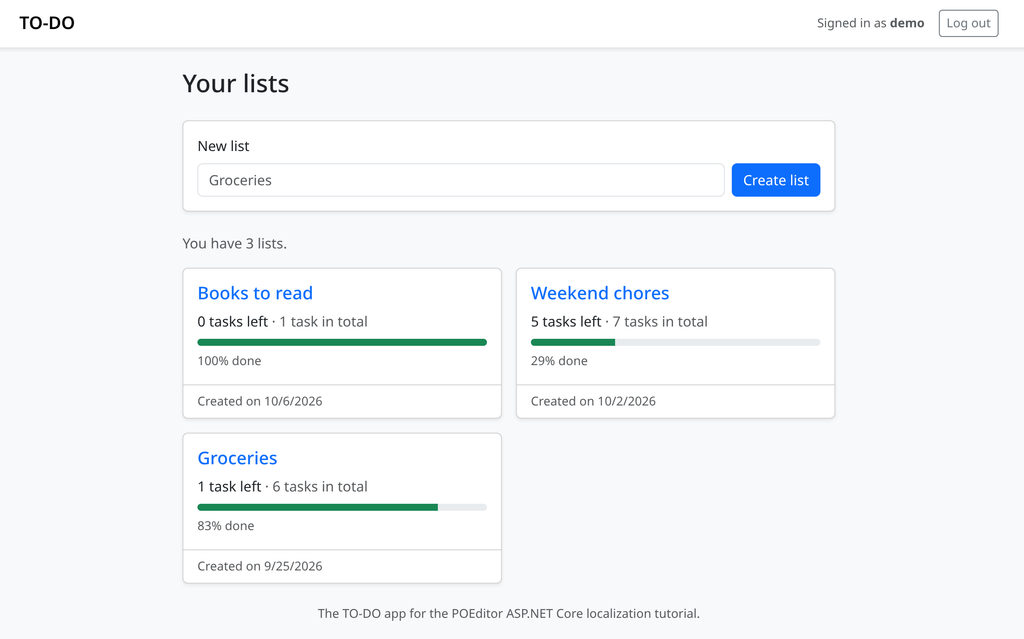
To follow along you need the .NET 10 SDK. dotnet run -- seed creates a demo account with the password demo1234 and three sample lists, and dotnet run starts the app at the address it prints.
Everything localization needs, apart from plurals, ships with ASP.NET Core, so there is no package to install yet. Register the services and the middleware in Program.cs.
// Program.cs

builder.Services.AddLocalization(options => options.ResourcesPath = "Resources");

builder.Services.AddRazorPages(options =>

{

    // Everything needs a login except the account pages, the error page

    // and the language switcher.

    options.Conventions.AuthorizeFolder("/");

    options.Conventions.AllowAnonymousToFolder("/Account");

    options.Conventions.AllowAnonymousToPage("/Error");

    options.Conventions.AllowAnonymousToPage("/Language");

})

    .AddViewLocalization()

    .AddDataAnnotationsLocalization(options =>

    {

        // Validation messages and display names come from SharedResource too.

        options.DataAnnotationLocalizerProvider = (type, factory) =>

            factory.Create(typeof(SharedResource));

    });

string[] supportedCultures = ["en", "fr"];

builder.Services.Configure<RequestLocalizationOptions>(options =>

{

    options.SetDefaultCulture(supportedCultures[0])

        .AddSupportedCultures(supportedCultures)

        .AddSupportedUICultures(supportedCultures);

});

var app = builder.Build();

// ...

// Before the status code pages: re-executing a request for the error page

// replaces its query string, and with it a ?culture= choice.

app.UseRequestLocalization();

app.UseStatusCodePagesWithReExecute("/Error", "?code={0}");

app.UseRouting();
AddLocalization registers IStringLocalizer<T> and tells it to look for resource files in the Resources folder. AddViewLocalization adds the localizers that Razor views use, and AddDataAnnotationsLocalization makes validation messages translatable, which a later section covers. SharedResource is an empty class you’ll create in the next section.
Every request runs with two cultures. CultureInfo.CurrentCulture controls how dates and numbers are formatted, while CultureInfo.CurrentUICulture decides which translations the localizers return, and the two lists of supported cultures above set the choices for each. UseRequestLocalization sets both at the start of every request, before anything reads them. It also goes above UseStatusCodePagesWithReExecute, which runs the request again for the error page with ?code=404 in place of the original query string, so a ?culture=fr in the address would otherwise be lost on a 404.
The middleware asks three providers in turn and takes the first supported answer:
- The query string, as in
?culture=fr. - The
.AspNetCore.Culturecookie, which the language switcher sets later on. - The browser’s
Accept-Languageheader.
A regional culture falls back to its parent, so a browser that asks for fr-CA gets French. A browser that asks only for languages the app doesn’t support, such as German, gets English, the default culture.
Creating a shared .resx resource file
IStringLocalizer<T> finds its resources by the full name of T, minus the app’s assembly name. With ResourcesPath set to Resources, a localizer for the class TodoApp.SharedResource reads Resources/SharedResource.resx, and on a French request it looks in Resources/SharedResource.fr.resx first. You can use a separate resource file for each page model or view, but a single shared file means you only need to import and export each language once in POEditor. To set that up, create an empty class to name the resource file.
// SharedResource.cs

namespace TodoApp;

// Marker class for the app's single resource file, Resources/SharedResource.resx,

// and its translations (SharedResource.fr.resx and so on).

public class SharedResource

{

}
ASP.NET Core lets you use the English text itself as the key. When a localizer can’t find a key in any resource file, it returns the key unchanged, so L["Your lists"] prints Your lists before a single translation exists. The TO-DO app still keeps an English file, SharedResource.resx, with every key and its English text. It is the catalog you upload to POEditor, and it is where English wording can differ from the key, as you’ll see with the task status badges.
.NET has no command that scans your code for strings, and the SDK has no dotnet new template for .resx files, although Visual Studio can create one from its Add New Item dialog. Since .resx files use plain XML, you can write them by hand, adding an entry whenever you localize a new string in the code. Here are the header and four of the TO-DO app’s entries:
<!-- Resources/SharedResource.resx -->

<root>

  <resheader name="resmimetype">

    <value>text/microsoft-resx</value>

  </resheader>

  <resheader name="version">

    <value>2.0</value>

  </resheader>

  <resheader name="reader">

    <value>System.Resources.ResXResourceReader, System.Windows.Forms, Version=4.0.0.0, Culture=neutral, PublicKeyToken=b77a5c561934e089</value>

  </resheader>

  <resheader name="writer">

    <value>System.Resources.ResXResourceWriter, System.Windows.Forms, Version=4.0.0.0, Culture=neutral, PublicKeyToken=b77a5c561934e089</value>

  </resheader>

  <data name="Your lists" xml:space="preserve">

    <value>Your lists</value>

  </data>

  <data name="{count, plural, one {{count, number} task left} other {{count, number} tasks left}}" xml:space="preserve">

    <value>{count, plural, one {{count, number} task left} other {{count, number} tasks left}}</value>

  </data>

  <data name='List "{0}" created.' xml:space="preserve">

    <value>List "{0}" created.</value>

  </data>

  <data name="Status: Done" xml:space="preserve">

    <value>Done</value>

    <comment>Badge on a single completed task</comment>

  </data>

</root>
Each <data> element pairs a key, in its name attribute, with a <value>. The optional <comment> is a note for translators, and POEditor imports it along with the string. POEditor does the same with an XML comment placed just before a <data> element, so keep <!-- --> notes out of the file unless you mean them for translators. When you build the app, the English file is compiled into TodoApp.dll and each translation into a satellite assembly such as fr/TodoApp.resources.dll in the output folder, so a new or edited .resx file only takes effect after a rebuild.
Using IStringLocalizer in Razor Pages
Inject a localizer into every page at once from _ViewImports.cshtml:
@* Pages/_ViewImports.cshtml *@

@using System.Globalization

@using Microsoft.AspNetCore.Mvc.Localization

@using Microsoft.Extensions.Localization

@using TodoApp

@using TodoApp.Models

@namespace TodoApp.Pages

@addTagHelper *, Microsoft.AspNetCore.Mvc.TagHelpers

@inject IStringLocalizer<SharedResource> L
Replace the hardcoded strings with calls to L["..."]. A key can carry string.Format placeholders such as {0}, with the values passed after the key, and Razor HTML-encodes the result like any other string, so an & or < in a translation can’t break the markup. You’ll also need to localize text in attributes such as placeholder and aria-label. The latter is easy to overlook because it’s read by screen readers rather than displayed on the page.
@* Pages/Index.cshtml *@

@{

    ViewData["Title"] = L["Your lists"];

    // ...

}

<label asp-for="NewList.Name" class="form-label">@L["New list"]</label>

<input asp-for="NewList.Name" class="form-control" placeholder="@L["Groceries"]" />

@* ... *@

<div class="card-footer bg-transparent text-body-secondary small">

    @L["Created on {0}", Format.Date(list.CreatedAt)]

</div>
The navbar’s Signed in as line wraps the username in <strong>, and with IStringLocalizer that tag would come out encoded as text. IHtmlLocalizer, one of the services AddViewLocalization registers, prints the translation as HTML and still encodes the arguments, so a user named <i>bob</i> appears literally instead of in italics.
@* Pages/Shared/_Layout.cshtml *@

@inject IHtmlLocalizer<SharedResource> H

@* ... *@

<span class="text-body-secondary small text-break">@H["Signed in as <strong>{0}</strong>", User.Identity.Name!]</span>
Page models take IStringLocalizer<SharedResource> through their constructor. Before localization, the handlers built flash messages using string interpolation or concatenation, for example, $"Task \"{task.Text}\" added.”. Now each one is a whole sentence with a placeholder, so translators can put the task name wherever it fits in the French sentence.
// Pages/Lists/Details.cshtml.cs

public class DetailsModel(TodoDbContext db, IStringLocalizer<SharedResource> localizer) : AppPageModel

{

    // ...

    public async Task<IActionResult> OnPostAddTaskAsync(int id, string? show, TaskInput newTask)

    {

        // ...

        Flash(localizer["Task \"{0}\" added.", task.Text]);

        return RedirectToPage(new { id, show });

    }

    // ...

}
With the English text as the key, two uses of the same English word share one entry, and .resx has no context field like gettext’s msgctxt to tell them apart. The list page uses Done both for a filter tab and for the badge on a completed task, but French needs the plural Terminées for the tab and the singular Terminée for one task. The badges therefore get keys of their own, Status: Done and Status: Open, with the English values Done and Open (the first is in the SharedResource.resx excerpt above), while the filter tabs keep L["Done"] and L["Open"].
@* Pages/Lists/Details.cshtml *@

<span class="badge rounded-pill mt-2 @(task.Done ? "text-bg-success" : "text-bg-secondary")">

    @(task.Done ? L["Status: Done"] : L["Status: Open"])

</span>
Quick tip: The unlocalized app asked for confirmation with an inline
onsubmit="return confirm('Delete this list and everything in it?');". If you put@L[...]inside those quotes, the French text Supprimer cette liste et tout ce qu’elle contient ? ends the JavaScript string at its apostrophe. The browser reports a syntax error, shows no dialog and submits the form, which deletes the list without asking.
The TO-DO app puts the translated text in a data-confirm attribute instead, as in <form method="post" ... data-confirm="@L["Delete this task?"]">, where Razor encodes it like any other attribute value. A small script reads the attribute on submit:
// wwwroot/js/site.js

// Asks before submitting a form that has a data-confirm attribute. The text

// comes from the attribute, so a translation with an apostrophe in it

// cannot break the script.

document.querySelectorAll('form[data-confirm]').forEach(form => {

    form.addEventListener('submit', event => {

        if (!confirm(form.dataset.confirm)) {

            event.preventDefault();

        }

    });

});
Load it at the end of _Layout.cshtml, after the Bootstrap bundle, with <script src="~/js/site.js" asp-append-version="true"></script>.
Translating validation messages and display names
The forms use data annotations, and AddDataAnnotationsLocalization in Program.cs sends their text to SharedResource as well, through the DataAnnotationLocalizerProvider option. Without that option, ASP.NET Core would look for a separate resource file for each model class. Display names are translated automatically, so [Display(Name = "Username")] gives the French login form a Nom d’utilisateur label.
The built-in error messages are not translated, though. With a bare [Required] on the task field, the French page reports The Tâche field is required., a translated field name inside an English sentence. ASP.NET Core only looks up a localized validation message when the attribute has its own ErrorMessage value. Add one to each attribute, then include the message in the .resx file like any other key.
// Pages/FormModels.cs

public class ListInput

{

    [Required(ErrorMessage = "The {0} field is required.")]

    [StringLength(100, ErrorMessage = "The {0} field can be at most {1} characters long.")]

    [Display(Name = "List name")]

    public string Name

    {

        get => name;

        // Trimmed as it is bound, so the length check sees what gets stored.

        set => name = value?.Trim() ?? "";

    }

    private string name = "";

}

public class TaskInput

{

    [Required(ErrorMessage = "The {0} field is required.")]

    [StringLength(200, ErrorMessage = "The {0} field can be at most {1} characters long.")]

    [Display(Name = "Task")]

    public string Text

    {

        get => text;

        // Trimmed as it is bound, so the length check sees what gets stored.

        set => text = value?.Trim() ?? "";

    }

    private string text = "";

}
{0} is the translated display name and {1} the maximum length. For a StringLength with a minimum, such as the registration form’s username, {2} holds the minimum, so The {0} field must be between {2} and {1} characters long. becomes Le champ Nom d’utilisateur doit contenir entre 3 et 30 caractères. Errors that a handler adds itself go through the localizer directly, as in ModelState.AddModelError(string.Empty, localizer["That username and password do not match."]).
Handling plurals with ICU MessageFormat
.resx files have no plural forms, and IStringLocalizer has no plural method, so branches such as the unlocalized app’s list.OpenCount == 1 ? "1 task left" : $"{Format.Number(list.OpenCount)} tasks left” can’t be translated as they are. They also build English grammar into the code: in French, 0 takes the singular, so an empty list should say 0 tâche restante, which a count == 1 check can never produce.
The TO-DO app stores each plural string as a single ICU MessageFormat message in the .resx file and formats it with the MessageFormat package (version 8.0.0), which you add with dotnet add package MessageFormat. The package uses CLDR plural rules to choose the right form for the specified culture. A small extension method on IStringLocalizer is all the views need to call it.
// LocalizerExtensions.cs

using System.Globalization;

using Jeffijoe.MessageFormat;

using Microsoft.Extensions.Localization;

namespace TodoApp;

public static class LocalizerExtensions

{

    private static readonly MessageFormatter Formatter = new();

    // Looks up an ICU plural message, such as

    // "{count, plural, one {{count, number} list} other {{count, number} lists}}",

    // and picks the plural form the current language uses for this count.

    public static string Plural(this IStringLocalizer localizer, string key, int count) =>

        Formatter.FormatMessage(

            localizer[key],

            new Dictionary<string, object?> { ["count"] = count },

            CultureInfo.CurrentUICulture);

}
In a view, the ICU message is the key, and the count goes in as the second argument:
@* Pages/Index.cshtml *@

@L.Plural("{count, plural, one {{count, number} task left} other {{count, number} tasks left}}", list.OpenCount)
ICU’s usual shorthand for the number inside a branch is #, but MessageFormat.NET prints # without digit grouping, as 1234. The TO-DO app writes {count, number} instead, which formats the count for the culture the helper passes in, as 1,234 in English and 1 234 in French. The French translation keeps the same structure with French text in each branch, and it has one more branch than English, because French has a many category, which CLDR uses for exact multiples of a million, such as 1 000 000 de tâches.
Adding a language switcher
The ?culture=fr query parameter changes the language for one request, but it doesn’t remember the choice when the visitor navigates to another page. To make it stick, the TO-DO app stores it in the cookie that CookieRequestCultureProvider reads, using MakeCookieValue to build the value, which comes out as c=fr|uic=fr. A Razor Page handles the switcher’s form submission and redirects the visitor back to the page they were viewing.
// Pages/Language.cshtml.cs

using Microsoft.AspNetCore.Diagnostics;

using Microsoft.AspNetCore.Localization;

using Microsoft.AspNetCore.Mvc;

using Microsoft.AspNetCore.Mvc.RazorPages;

using Microsoft.AspNetCore.WebUtilities;

using Microsoft.Extensions.Options;

namespace TodoApp.Pages;

// POST only: the language buttons in the navbar. Stores the choice in the

// culture cookie that CookieRequestCultureProvider reads on every request.

// No antiforgery check: a tab whose token is stale (after logging in or out

// elsewhere) can still switch language, and the cookie only picks a language.

[IgnoreAntiforgeryToken]

public class LanguageModel(IOptions<RequestLocalizationOptions> localization) : PageModel

{

    public IActionResult OnGet() => RedirectToPage("/Index");

    public IActionResult OnPost(string culture, string? returnUrl)

    {

        var supported = localization.Value.SupportedUICultures!.Any(c => c.Name == culture);

        if (supported)

        {

            Response.Cookies.Append(

                CookieRequestCultureProvider.DefaultCookieName,

                CookieRequestCultureProvider.MakeCookieValue(new RequestCulture(culture)),

                new CookieOptions { Expires = DateTimeOffset.UtcNow.AddYears(1), IsEssential = true });

        }

        // Only addresses on this site, and only ASCII ones, as the switcher sends.

        var local = Url.IsLocalUrl(returnUrl) && returnUrl.All(char.IsAscii);

        return LocalRedirect(local ? returnUrl! : "/");

    }

    // ...

}
The Language.cshtml page next to it contains only @page and its @model line. Since the app requires a login for every page except the account pages and the error page, the AllowAnonymousToPage("/Language") call in Program.cs keeps the switcher working on the login form, and Url.IsLocalUrl stops the return address from sending anyone to another site.
The address to come back to needs two adjustments. A ?culture=fr left in it would override the new cookie, so after clicking English the visitor would land on the same page, still in French. And an error page runs as /Error, so the original address has to come from the feature ASP.NET Core leaves on the request: IStatusCodeReExecuteFeature on a status code page such as the 404 page, and IExceptionHandlerPathFeature on the page shown after an unhandled exception. A static helper on the same class handles both:
// Pages/Language.cshtml.cs

    // The page to come back to: the address in the browser, even on an error page,

    // minus ?culture= and ?ui-culture=, which would override the new cookie.

    public static string ReturnUrlFor(HttpContext context)

    {

        var request = context.Request;

        var path = request.PathBase.Add(request.Path);

        var queryString = request.QueryString.Value;

        // An error page runs as /Error; these features keep the original address.

        if (context.Features.Get<IStatusCodeReExecuteFeature>() is { } reExecute)

        {

            path = new PathString(reExecute.OriginalPathBase).Add(new PathString(reExecute.OriginalPath));

            queryString = reExecute.OriginalQueryString;

        }

        else if (context.Features.Get<IExceptionHandlerPathFeature>() is { } exception)

        {

            path = request.PathBase.Add(new PathString(exception.Path));

        }

        var kept = QueryHelpers.ParseQuery(queryString)

            .Where(q => !q.Key.Equals("culture", StringComparison.OrdinalIgnoreCase)

                     && !q.Key.Equals("ui-culture", StringComparison.OrdinalIgnoreCase));

        return path + QueryString.Create(kept);

    }
In the layout, the switcher is one form with a button per language, each labeled in its own language, and the lang attribute on <html> follows the UI culture.
@* Pages/Shared/_Layout.cshtml *@

@inject IHtmlLocalizer<SharedResource> H

@{

    var language = CultureInfo.CurrentUICulture.TwoLetterISOLanguageName;

    var returnUrl = LanguageModel.ReturnUrlFor(Context);

}

<!DOCTYPE html>

<html lang="@language">

@* ... *@

<form method="post" asp-page="/Language" asp-route-returnUrl="@returnUrl" class="m-0">

    <div class="btn-group btn-group-sm" role="group" aria-label="@L["Language"]">

        <button type="submit" name="culture" value="en" lang="en"

                class="btn @(language == "en" ? "btn-secondary" : "btn-outline-secondary")">English</button>

        <button type="submit" name="culture" value="fr" lang="fr"

                class="btn @(language == "fr" ? "btn-secondary" : "btn-outline-secondary")">Français</button>

    </div>

</form>
Formatting dates and numbers with CultureInfo
The localizers only cover text. The unlocalized Format class passed fixed patterns such as M/d/yyyy with CultureInfo.InvariantCulture, so French pages would still show 9/24/2026. Use .NET’s standard format strings with the current culture instead.
// Format.cs

// Date and number formatting in the current request's culture.

// Dates are stored in UTC and shown in the server's local time zone.

public static class Format

{

    // 9/24/2026 in English, 24/09/2026 in French

    public static string Date(DateTime utc) =>

        ToLocal(utc).ToString("d", CultureInfo.CurrentCulture);

    // 9/24/2026 3:07 PM in English, 24/09/2026 15:07 in French

    public static string DateAndTime(DateTime utc) =>

        ToLocal(utc).ToString("g", CultureInfo.CurrentCulture);

    // 1,234 in English, 1 234 in French

    public static string Number(int value) =>

        value.ToString("N0", CultureInfo.CurrentCulture);

    // ...

}
d is the culture’s short date, g its short date and time, and N0 a whole number with the culture’s digit grouping, which in French is a narrow no-break space. All three follow CurrentCulture, while the localizers and the plural helper follow CurrentUICulture. The {0}% done progress text is a translated string, so the French translator writes {0} % terminé, with the space that French typography puts before the percent sign.
Translating the .resx file in POEditor
In POEditor, create a project for the app from the + button on the Dashboard, and name it TO-DO app (ASP.NET Core). POEditor opens the new project, where you add English and French as its languages.
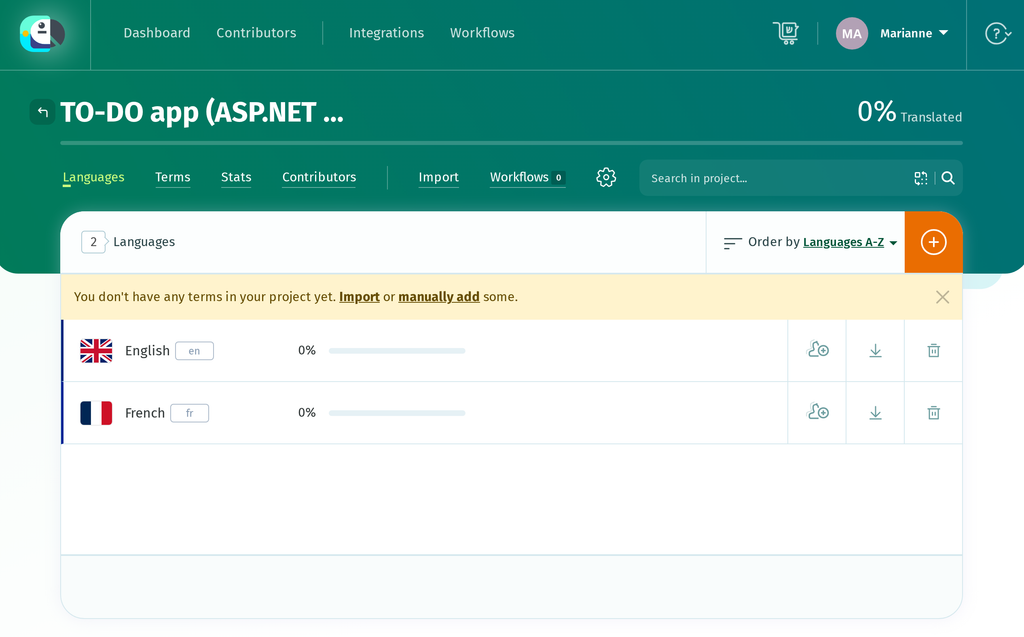
English and French in the new project, before any import
Open Import, choose Resources/SharedResource.resx on the Import Terms page, keep Also import translations to a language switched on, and choose English from the language list. POEditor recognizes the format from the .resx extension, so there is no format to pick. Click Import to project.
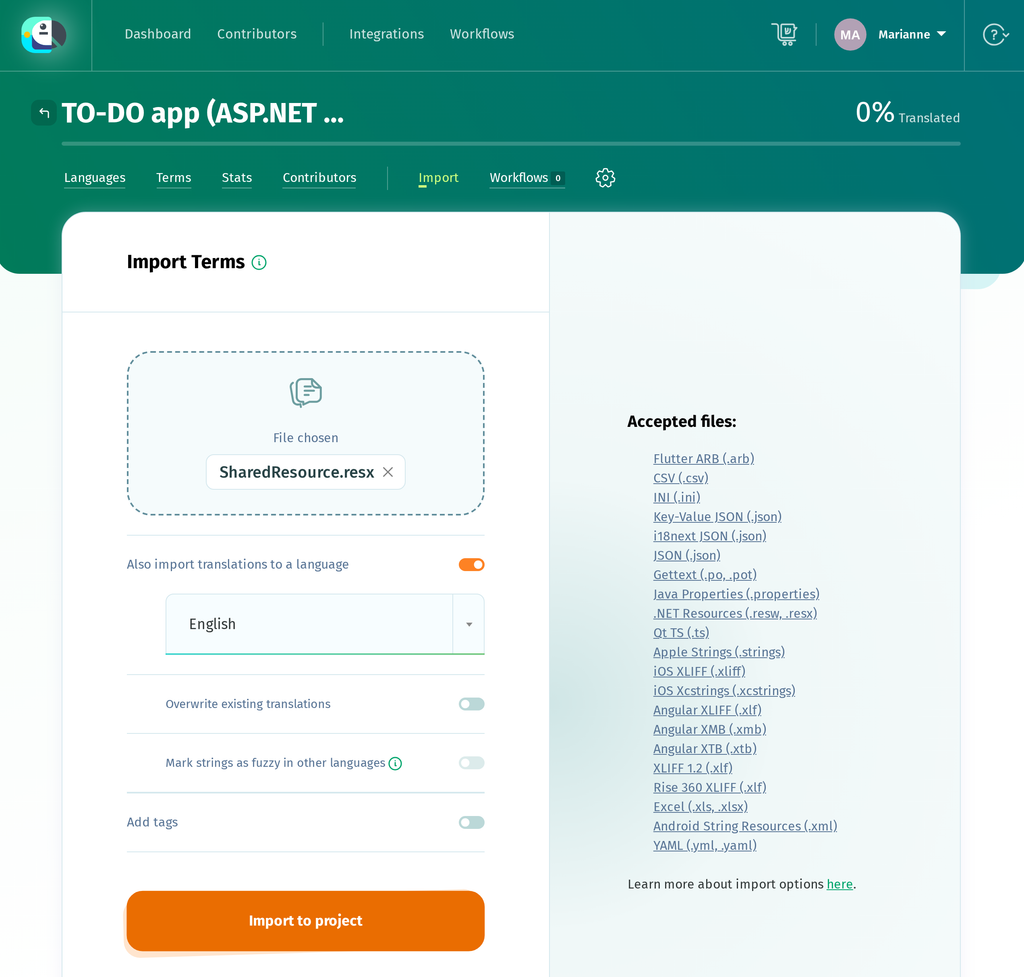
Each name becomes a term and each <value> its English translation, so the TO-DO app’s 78 strings arrive as 78 terms with English already at 100%. The import doesn’t set a reference language, though, and the Status: Done term needs one to show translators its English text. Click the gear icon to open the project settings, click Edit Details, set DEFAULT REFERENCE LANGUAGE to English, and click Save project details.
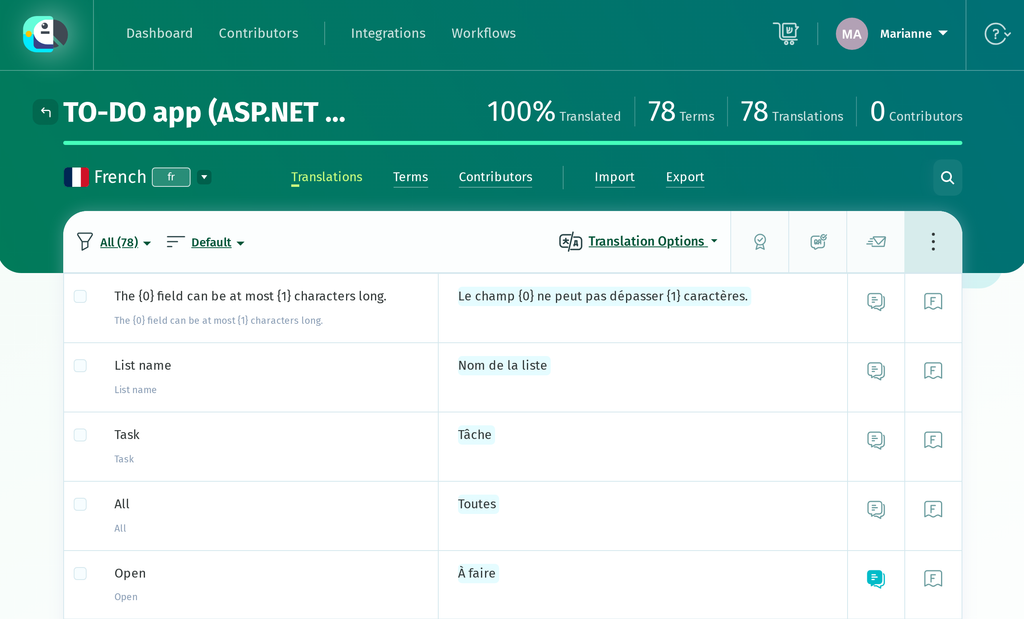
Open the French language and start translating the terms. The editor shows the English text of each term in large type, with its key below in small grey type. Keep placeholders such as {0} exactly as written, though you can move them anywhere in the French sentence. If a translation drops or changes one, QA Checks flag it when you save. Terms that had a <comment> in the .resx file have a filled-in comment icon, and clicking it opens a Comments panel with the note, such as Badge on a single completed task.
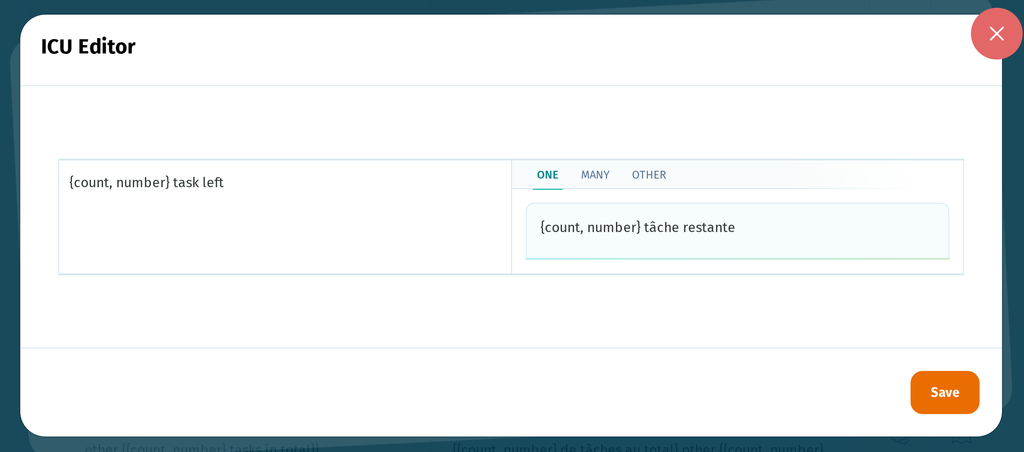
POEditor recognizes the ICU plural messages and shows an eye icon labeled ICU editor in the translation box of each one. Once a term has a translation, the icon only appears when you click into the box. Clicking the icon opens a dialog with the English form on the left and a tab for each French plural form, ONE, MANY and OTHER, so you can translate the forms one at a time and click Save to write the full ICU message back. Fill in all three tabs.
If you would rather review a first draft than translate from scratch, you can pre-fill the French terms with Automatic Translation (Google Translate, DeepL or Azure AI Translator), which is built in, or with AI translation from providers such as OpenAI or Anthropic’s Claude once you add your own API key. Check the ICU plural messages by hand afterwards, because automatic translation doesn’t always handle ICU syntax well.
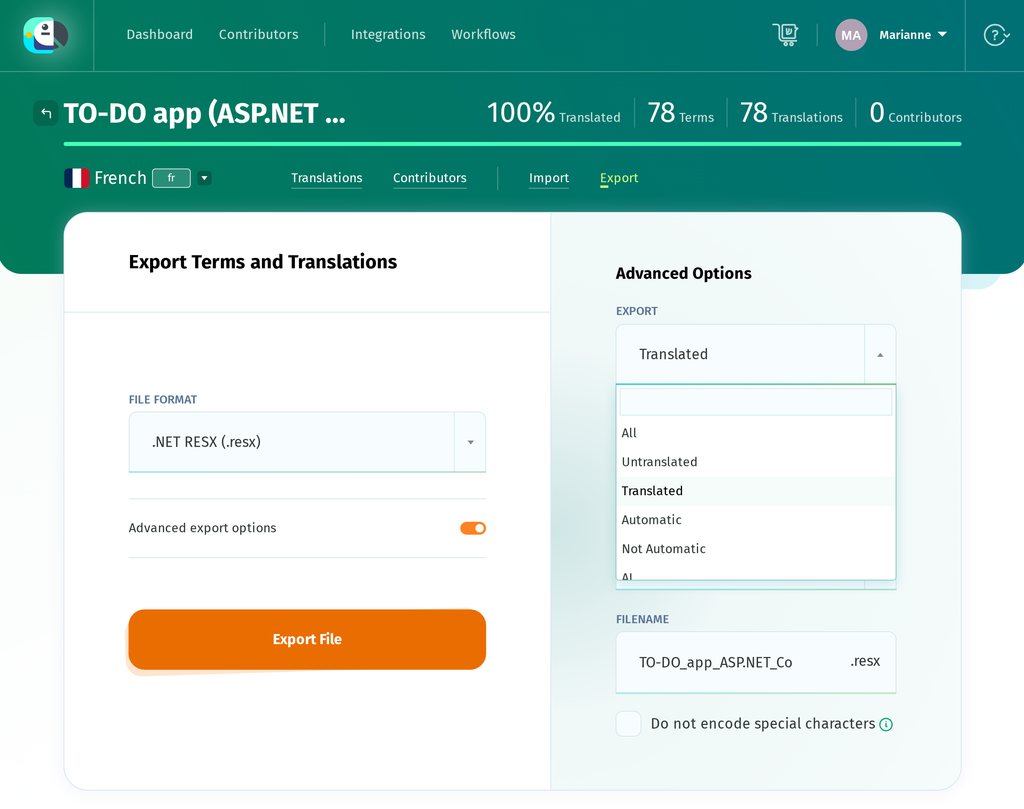
Once you’ve finished translating, open Export. On the Export Terms and Translations page, set FILE FORMAT to .NET RESX (.resx) and click Export File. If some terms are still untranslated, switch on Advanced export options first and set EXPORT to Translated. By default the file includes an untranslated term with an empty <value>, and ASP.NET Core displays an empty value as blank text, while a term that is missing from the French file falls back to the English in SharedResource.resx.
The download is named after the project and the language, TO-DO_app_ASP.NET_Core_French.resx. Save it as Resources/SharedResource.fr.resx. It contains the same keys as the English file, with the French text in each <value> and the comments kept.
<!-- Resources/SharedResource.fr.resx -->

  <data name="Status: Done" xml:space="preserve">

    <value>Terminée</value>

    <comment>Badge on a single completed task</comment>

  </data>

  <data name="{count, plural, one {{count, number} task left} other {{count, number} tasks left}}" xml:space="preserve">

    <value>{count, plural, one {{count, number} tâche restante} many {{count, number} de tâches restantes} other {{count, number} tâches restantes}}</value>

  </data>
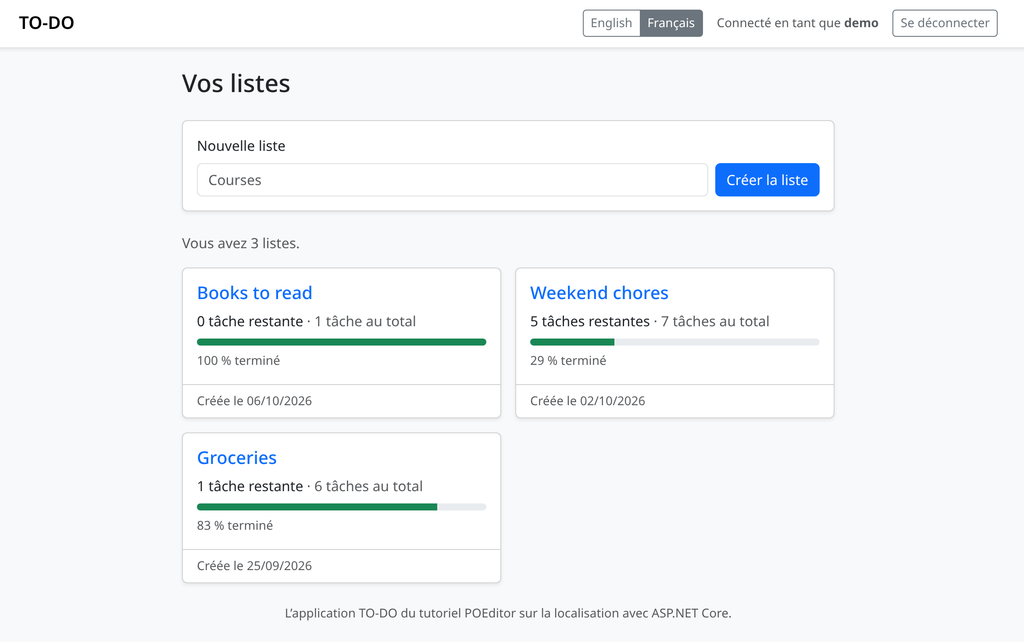
Run dotnet run again so the build picks up the new file, then click Français in the navbar.
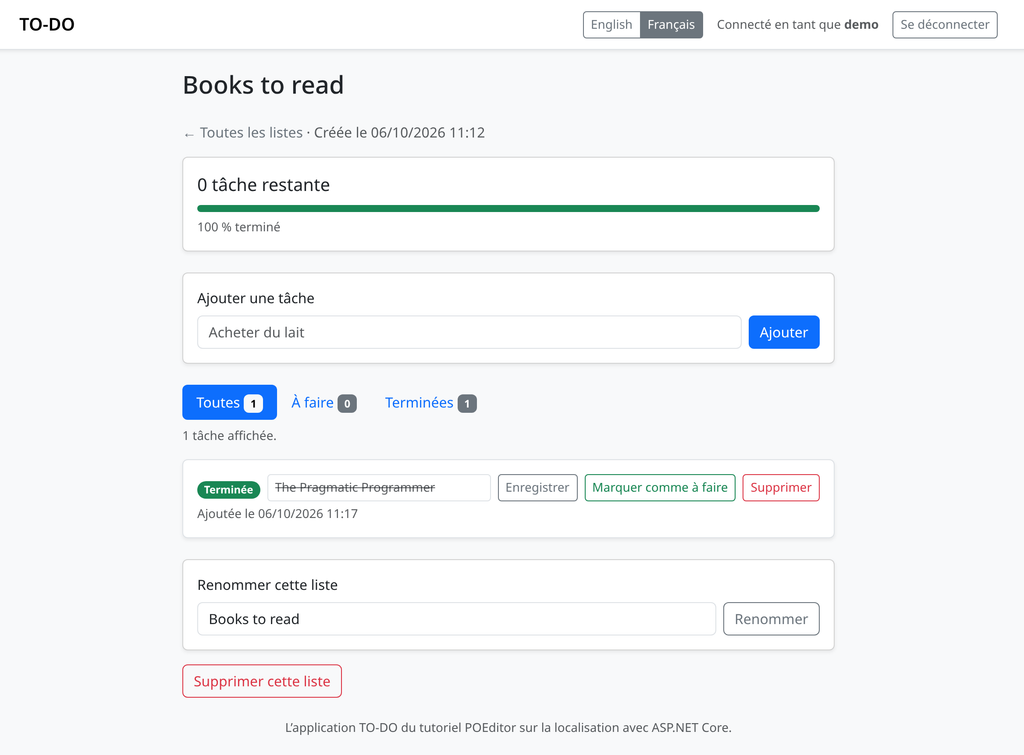
On a list page, the badge of a completed task shows its own translation, Terminée, while the filter tab above it reads Terminées.
Wrapping up
Whenever you add a new string to the app, add it to SharedResource.resx and import the file into POEditor again. Also import translations to a language starts switched off once the project has terms, so switch it on and choose English, or the new terms arrive without their English text.
The import adds only the new terms, which appear untranslated in French, and the existing ones keep their translations, so export with Translated until French catches up. Because the keys are the English text, rewording a string creates a new key.
After that import, POEditor opens an Obsolete Terms page listing the old term, which you can tick and remove with Delete Selected, or keep with Keep all and go to terms list and delete later from the Terms page.
If you need to do this for every release, you can use the POEditor API or a code hosting integration to upload SharedResource.resx and download the translated files automatically.
Create a free POEditor account and import your own .resx file to start translating your ASP.NET Core app.
Ready to power up localization?
Subscribe to the POEditor platform today!For other stacks in this series, see these guides:
- CakePHP Localization: How to Translate a CakePHP App with i18n
- Django i18n: How to translate and localize your app
- Python gettext localization: How to translate a Python app
- Node.js localization: How to translate an express app with i18n-node
Frequently asked questions
Should .resx keys be the English text or identifiers?
ASP.NET Core supports both. With the English text as the key, the localizer returns the key itself when no translation exists, so the app shows readable English before you write any resource file, and translators see the real sentence as the term in POEditor. The downside is that changing the English wording also changes the key, and two uses of the same word share a translation unless you give them separate keys. Identifiers such as Lists.Title survive rewording and keep every use separate, but an untranslated identifier shows up on the page as the identifier, so you need a complete English .resx file from the start. In POEditor, set English as the default reference language either way, so translators see English text next to each key.
Can I keep one .resx file per page instead of a shared file?
Yes. Inject IViewLocalizer into a view, and it looks up a resource file named after the view’s path: for Pages/Index.cshtml with ResourcesPath set to Resources, the French file is Resources/Pages/Index.fr.resx. Page models do the same with IStringLocalizer<IndexModel>, which reads a file named after the class. Per-page files keep each file short, but each one is a separate import and export in POEditor, so a shared file is simpler to keep in sync when one team translates the whole app.
Why does a page still show English after I add the French file?
First, check whether the request is using French. A culture that isn’t in SupportedUICultures is ignored, so the next source in line decides, with the default culture as the last resort, and ?culture=fr in the address bar is the quickest test. Then check the key: a translation is found only when its name matches the key in the code exactly, including punctuation and capital letters, and a key that is missing from the French file falls back to English. Finally, the French file is compiled into a satellite assembly, so the app has to be rebuilt before a new or changed file takes effect. A translation that shows as blank text instead of English is a different problem: the French file contains that key with an empty value, which happens when you export untranslated terms from POEditor.
Why does Razor output é instead of é?
Razor’s HTML encoder only lets basic Latin characters through by default and writes everything else as a numeric character reference, so Créer arrives in the HTML as Créer. Browsers display both the same way. If you want readable HTML source, allow all Unicode ranges in Program.cs with builder.Services.Configure<WebEncoderOptions>(options => options.TextEncoderSettings = new TextEncoderSettings(UnicodeRanges.All));, using the Microsoft.Extensions.WebEncoders, System.Text.Encodings.Web and System.Text.Unicode namespaces. Characters that matter for HTML, such as < and &, are still encoded, and so are no-break spaces.
Can I use PO files instead of .resx?
Yes, with the OrchardCore.Localization.Core package, which Microsoft’s documentation describes in Configure portable object localization in ASP.NET Core. You register it with AddPortableObjectLocalization() in place of AddLocalization(), keep using IStringLocalizer and IViewLocalizer, and get plural support through a Plural extension method, since PO files store plural forms natively. Orchard Core is not a Microsoft product, and Microsoft does not support it. POEditor imports and exports PO files as well, so the translation workflow stays the same.